
TL;DR: Cloudflare Email Routing lets you create unlimited branded email addresses on your domain for free. Emails sent to those addresses forward to any inbox you choose. Setup takes under 10 minutes once access is granted. The only catch: it is receive-and-forward only; you cannot send outbound mail from the custom address through Cloudflare.
Most people spend money on Google Workspace or Zoho just to get a single branded email address. I did the same thing for years before realizing Cloudflare had quietly launched a completely free alternative that covers 90% of what most small business owners and bloggers actually need.
If you manage your domain through Cloudflare, you can have info@yourdomain.com, hello@yourdomain.com, and as many other addresses as you want, all forwarding to your personal Gmail or whatever inbox you already use. Zero cost. No separate hosting. No extra subscriptions.
I set this up on several of my own domains and it works exactly as advertised. This tutorial walks you through every step, including the DNS configuration that trips most people up, so you can get a professional email address today without spending anything.
Watch the full setup walkthrough on YouTube:
What Is Cloudflare Email Routing?
Cloudflare Email Routing is a free service that lets you create custom email addresses on any domain you manage through Cloudflare. When someone sends an email to your custom address, Cloudflare intercepts it and forwards it to a destination inbox of your choice.
It is not a full email hosting service. Think of it as a smart mail forwarding system. Your custom address (contact@yourdomain.com) receives incoming mail and delivers it to your real inbox (yourname@gmail.com). You manage everything from the Cloudflare dashboard.
The service supports unlimited custom forwarders per domain, a catch-all address option, and multiple destination inboxes. It is free on all Cloudflare plans, including the free tier.
Why a Branded Email Address Matters
A Gmail or Yahoo address on your contact page signals that you are a hobbyist, not a professional. A branded address does the opposite.
From an E-E-A-T perspective (Google’s framework of Experience, Expertise, Authoritativeness, and Trustworthiness), a domain-matched email is a trust signal. Journalists who consider linking to your content, podcast guests you are trying to book, and clients evaluating your services all notice the difference between hi@alstonantony.com and alston.antony2024@gmail.com.
Beyond credibility, a custom email address also protects your personal inbox. You can create role-specific addresses (support@, press@, partnerships@) that route to the right place without giving out your personal email to everyone.
Mini-story: Priya ran a freelance SEO consultancy for two years with a Gmail address. She landed a pitch meeting with a mid-sized SaaS company, and the first thing their marketing director asked was, “Is your business email on a custom domain?” It was not. The contract went to a competitor. After setting up Cloudflare Email Routing, every proposal she sent came from priya@priyaseo.co. She closed her next three pitches. The setup had taken her eight minutes.
What You Need Before You Start
Before touching anything in Cloudflare, make sure you have two things in place.
Your Domain Must Be Managed by Cloudflare
Cloudflare Email Routing only works for domains where Cloudflare is your DNS provider. If you registered your domain through Namecheap, GoDaddy, or another registrar, you either need to transfer the domain to Cloudflare or update the nameservers at your registrar to point to Cloudflare’s DNS.
Adding a domain to Cloudflare is free. Cloudflare also sells domains at cost with no markup, so it is worth checking if they support your extension at cloudflare.com/products/registrar.
If you are not sure how to register a domain and add it to Cloudflare, read my Namecheap domain registration tutorial first, then come back here.
A Destination Inbox You Already Have
You need at least one existing email address to receive the forwarded messages. This can be a Gmail account, a Proton Mail address, a Zoho account, or anything else. Cloudflare sends a verification email to confirm you own the destination before activating forwarding.
Step-by-Step: How to Set Up Cloudflare Email Routing
The setup follows five clear stages. I will walk through each one with screenshots so you know exactly what you are looking at.
Step 1: Open the Email Routing Section in Cloudflare
Log into your Cloudflare dashboard. Select the domain you want to set up email routing on. In the left sidebar, look for Email and then click Email Routing.
If you have never enabled Email Routing on this domain, Cloudflare shows a “Get started” button. Click it.
Step 2: Create Your First Custom Address
On the getting-started screen, you will see two input fields:
- Custom address: the local part of your new email (for example,
contactfor contact@yourdomain.com) - Destination address: the inbox where forwarded mail will be delivered (your Gmail, etc.)
Fill in both fields and click Save.

Step 3: Verify Your Destination Email
After saving, the dashboard shows a “Pending” status next to your destination address.
Cloudflare sends a verification email to your destination inbox. Open that inbox, find the email from Cloudflare, and click the verification link inside it. This confirms that you actually control the destination address and that Cloudflare is not forwarding email to someone without their consent.
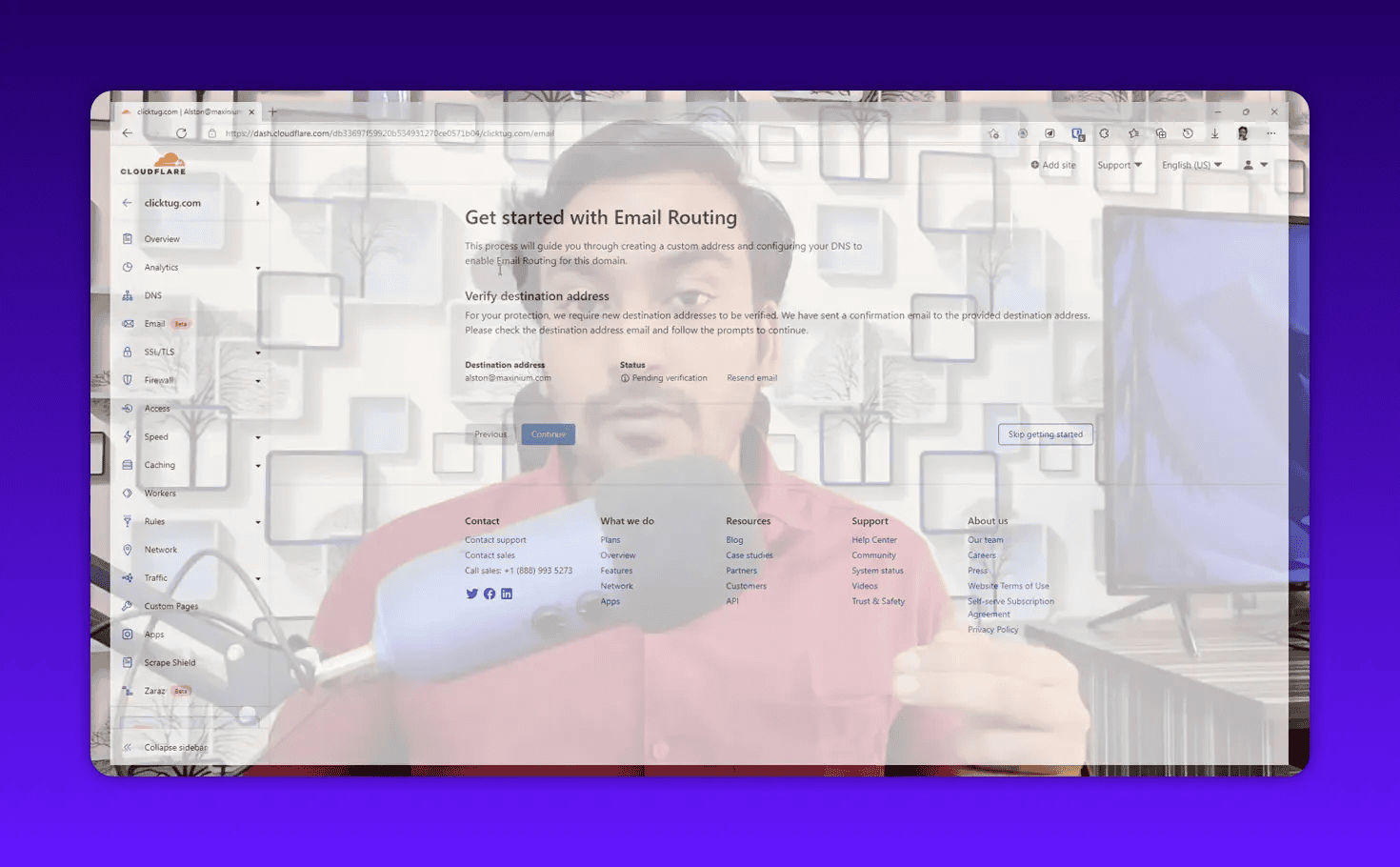
Once you click the link, go back to the Cloudflare dashboard and refresh. The status changes to “Verified.”
Step 4: Configure Your DNS Records
This is where most people hesitate. After verifying the destination, Cloudflare shows a “Configure your DNS” screen. It detects your current DNS setup and checks whether the necessary MX and TXT records are in place.
If your domain has no existing MX records (common for brand-new domains), Cloudflare displays an “Add records automatically” button. Click it. Cloudflare adds the required MX records and a TXT record for SPF automatically. You do not need to touch anything manually.
If your domain already has MX records (meaning you are currently using another email service like Google Workspace), Cloudflare lists those existing records and warns you that switching will disrupt your current email.
If you are migrating, here is the sequence to follow:
- Add the Cloudflare MX records first (do not delete the old ones yet)
- Wait for DNS propagation (usually a few minutes with Cloudflare)
- Delete the old MX records once Cloudflare records are active
- Verify the SPF TXT record is updated
The reason for this order: deleting your existing MX records immediately stops all incoming email. Adding the new records first minimizes the gap.
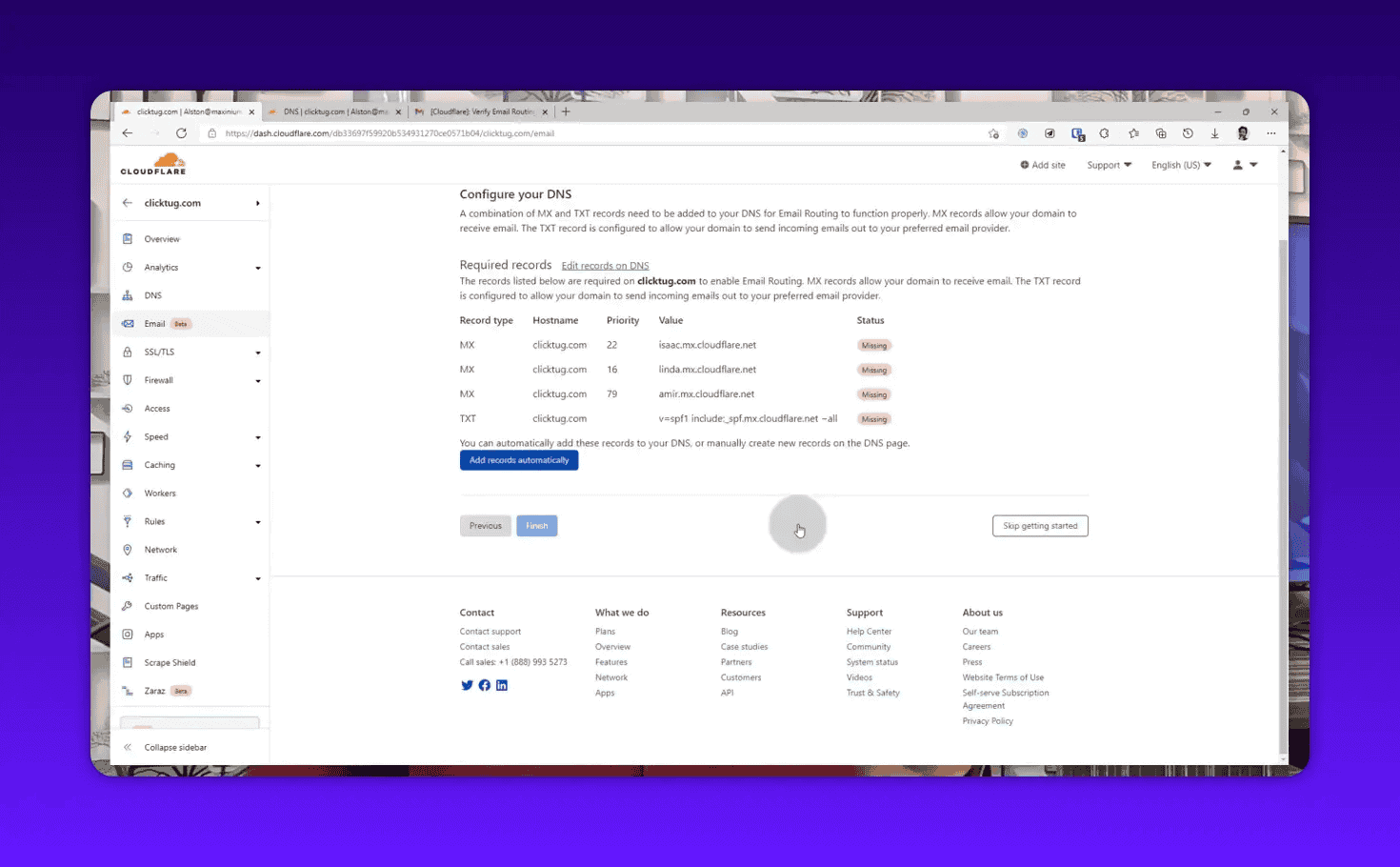
Once the records are in place, Cloudflare marks the DNS configuration as complete. Your custom email address is now live.
Step 5: Test It
Send an email from any external account to your new custom address. Within a few seconds, it should appear in the destination inbox you configured. If it does not arrive after 2 minutes, check the DNS status panel in Cloudflare to confirm all records are showing green.
How to Create Unlimited Additional Addresses
The getting-started flow creates one address. To add more, go back to Email > Email Routing > Routing Rules in your Cloudflare dashboard.
Click Create address. Each new address gets its own destination. You can route info@ to your support inbox, press@ to a PR team email, and partnerships@ to your business development contact, all from the same dashboard.
There is no limit on the number of custom addresses you can create.
Good use cases for multiple addresses:
contact@domain.comforwarded to your main Gmailsupport@domain.comforwarded to a help desk inboxhello@domain.comas a friendly alias for your newsletter sign-up pagenoreply@domain.comfor form submission confirmationsalston@domain.comas a personal branded address
Setting Up the Catch-All Address
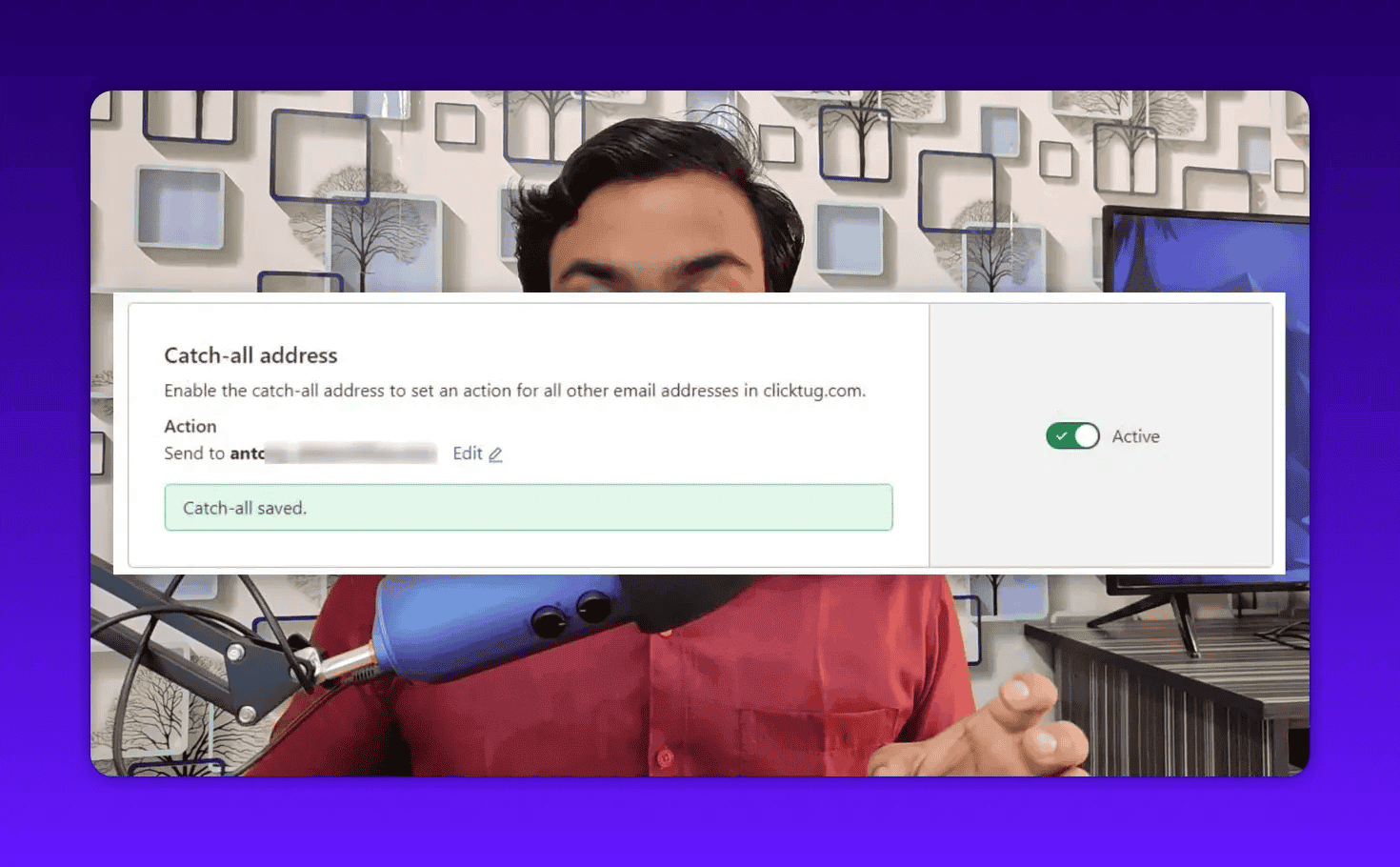
A catch-all address captures any email sent to your domain that does not match an existing forwarder. For example, if someone mistyped and sent a message to contcat@yourdomain.com (instead of contact@), the catch-all picks it up.
To enable it, go to Email Routing > Routing Rules and scroll to the Catch-all section at the bottom.
You have two options:
- Drop: Cloudflare silently discards emails sent to non-existent addresses. This is useful if you get spam on random addresses.
- Send to an email: All unmatched emails forward to a specific destination inbox.
For a small business, I recommend setting the catch-all to forward to your main inbox rather than dropping. The volume of legitimate misaddressed emails is higher than you might expect.
Managing Your Routing Dashboard
After setup, the Email Routing dashboard gives you a clear view of everything running:
- Custom addresses: All active forwarders with their routing status
- Destinations: Every verified destination inbox, with active/pending status and the option to add or remove inboxes
- DNS status: Live check showing whether your MX and TXT records are correctly configured
- Analytics: Basic send/receive counts per forwarder
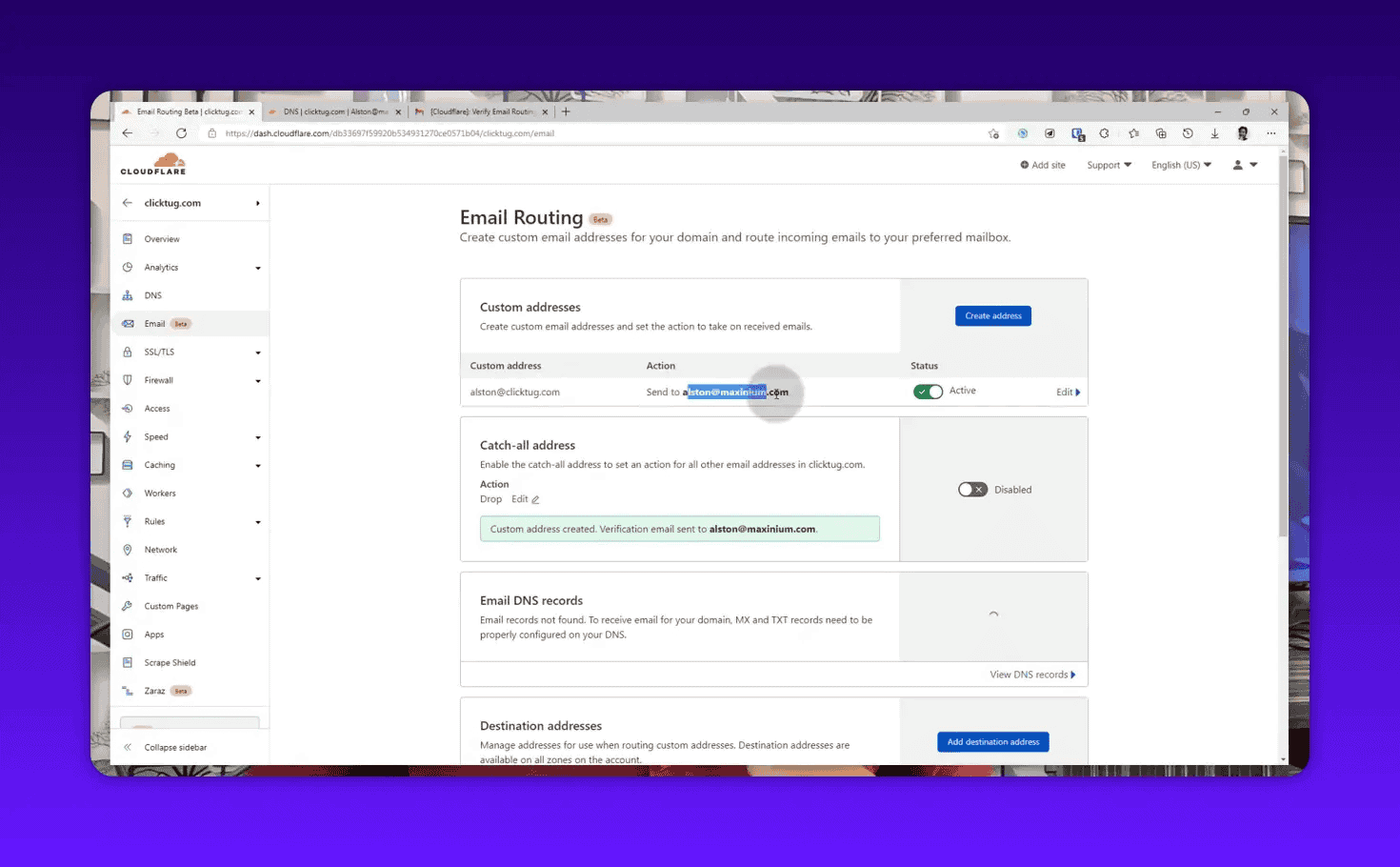
The dashboard is simple. There is not much to manage once the initial setup is done. Most people check it once during setup and then forget it exists, which is exactly how infrastructure should work.
The One Limitation You Must Know About
Cloudflare Email Routing is receive-and-forward only. You cannot send email from your custom address through Cloudflare.
This is the most important thing to understand before you set it up. When you reply to a message that was forwarded to your Gmail, the reply comes from your Gmail address, not from your custom Cloudflare address.
For many use cases, this is fine. If you are using a contact@ address purely to receive inquiries and then calling people back, the limitation does not matter. If you are using hello@ on your email newsletter from service, it does not matter there either.
But if you need to send professional emails from your custom domain address and have replies come back to that address, you need a separate SMTP service. Options include:
- Brevo (formerly Sendinblue): Free tier allows 300 emails/day
- Mailjet: Free tier available
- Google Workspace: Paid, but tight Gmail integration
- ImprovMX: Offers a paid SMTP add-on alongside free forwarding
Many people use Cloudflare Email Routing for receiving plus Brevo for sending. The combination covers both directions for free or very low cost.
Mini-story: Daniel runs a niche affiliate site and wanted a professional contact address. He set up contact@his-niche.com with Cloudflare Email Routing in 10 minutes. Readers emailed him, those emails landed in his Gmail, and he replied directly from Gmail. For his use case, the “limitation” was irrelevant because he never needed readers to see a response from his custom domain. The forwarding setup handled everything he needed at zero cost.
Real-World Use Cases for Cloudflare Email Routing
Small Business and Freelance
The most common use is a simple contact email. You build a website, add contact@yourdomain.com to the footer, and all inquiries land in your Gmail. Professional-looking, zero cost, zero ongoing maintenance.
Multiple Aliases for One Person
You can have different emails for different contexts. alston@alstonantony.com for professional contacts, press@alstonantony.com for media inquiries, and partnerships@alstonantony.com for business proposals, all forwarding to the same Gmail inbox. Each address signals a specific purpose to the sender.
E-E-A-T and Content Credibility
When Google evaluates the authoritativeness and trustworthiness of your site, one signal is whether the author’s listed email matches the site’s domain. A domain-matched email adds a small but real credibility signal. The same applies when other webmasters or journalists vet your site before linking.
I cover this in more detail in my guide on Cloudflare email routing for E-E-A-T, but the short version is: a branded email costs nothing with Cloudflare and removes one potential trust question mark.
WordPress and Form Submissions
If your contact form sends notifications to an email address, point that to a Cloudflare-routed address. Your site looks professional, and you still receive everything in Gmail.
What About Security and Privacy?
Cloudflare is one of the largest DNS and CDN operators in the world. They handle DNS for a significant share of the internet. Trusting them with your email routing is not a stretch if you already trust them with your domain’s DNS.
For most users, the security posture is fine. A few things worth knowing:
Your destination inbox still receives the raw emails. Cloudflare forwards them as-is. If you are routing to Gmail, Google still reads those emails for targeting purposes, as with all Gmail.
Cloudflare does not store routed emails. They forward and discard. There is no email storage or inbox inside Cloudflare itself.
SPF, DKIM, and DMARC. Cloudflare adds the SPF TXT record automatically. DKIM signing for outbound mail is not currently handled by the routing service. If you need strict DMARC with DKIM alignment, you need a full sending solution.
For most bloggers, solopreneurs, and small business owners, none of these nuances matter. The basic forwarding setup is secure enough for standard business communication.
Cloudflare Email Routing vs. Other Free Options
| Feature | Cloudflare Email Routing | ImprovMX (Free) | Zoho Mail (Free) |
|---|---|---|---|
| Price | Free | Free (1 alias) | Free (5 users) |
| Custom addresses | Unlimited | 1 | 5 |
| Outbound sending | No | No (paid add-on) | Yes |
| Setup complexity | Low | Low | Medium |
| Storage | None | None | 5 GB per user |
| Cloudflare integration | Native | Separate setup | Separate setup |
If you need outbound sending from your custom domain, Zoho Mail’s free tier is the best starting point. If you only need to receive and forward, Cloudflare is the simplest and most generous option.
Cloudflare’s advantage over ImprovMX is the unlimited aliases on the free tier. ImprovMX limits free users to one alias, which is enough for some use cases but not if you want separate addresses for different roles.
Frequently Asked Questions
How long does Cloudflare Email Routing take to set up?
If your domain is already in Cloudflare and has no existing MX records, the entire setup takes under 10 minutes. Most of that time is waiting for the verification email from Cloudflare to arrive. The actual configuration is a few button clicks.
Can I use Cloudflare Email Routing if my domain is registered elsewhere?
Yes, but your domain’s nameservers must point to Cloudflare. You can keep your domain registered at Namecheap or any other registrar and just update the nameservers. Once Cloudflare is your DNS provider, Email Routing works the same way.
What happens to emails if I delete a forwarder?
Emails sent to a deleted forwarder are rejected with a “no such user” error at the SMTP level. If you have a catch-all enabled, those emails route to the catch-all instead. Delete addresses you no longer use to keep the dashboard clean.
Does Cloudflare Email Routing work with Google Workspace?
You cannot run both Cloudflare Email Routing and Google Workspace on the same domain simultaneously. They both require control of your MX records, and only one service can control those at a time. If you already have Google Workspace, stick with it. If you do not and you only need basic forwarding, Cloudflare is the better free option.
Can I receive more than one domain’s email in the same inbox?
Yes. You can configure Cloudflare Email Routing on multiple domains and forward all of them to the same Gmail address. Each domain has its own Email Routing configuration in Cloudflare. There is no limit on how many domains you route to a single destination.
Is Cloudflare Email Routing good for newsletters?
For receiving subscription confirmation replies, yes. For sending newsletters, no. You need a dedicated email service provider like MailerLite, Brevo, or ConvertKit to send bulk email. Cloudflare’s routing handles inbound only.
Next Step
If you run a WordPress site and you are not yet using a branded email for your contact forms and author profile, set up Cloudflare Email Routing today. It takes 10 minutes and removes a small but real credibility gap in how your site presents itself.
Once your email is set up, the next credibility signal worth adding is automated WordPress backups. A site that goes down and loses data costs far more than any email provider. Read my guide on automated WordPress backups for business to get that sorted without spending anything either.
If you want to see how all these free tools fit into a broader SEO setup, check my free SEO tools collection and the best SEO tools list where I break down what is worth paying for and what you can get for nothing.