
TL;DR: You can backup your entire WordPress site for free using the Backup Bliss plugin. It takes one click to create a manual backup, supports automatic daily/weekly/monthly scheduling, and lets you restore your site in under a minute. This guide walks you through every step with screenshots.
I have managed over 100 WordPress sites over the past 15 years. In that time, I have seen plugin updates break entire sites, hosting providers lose data, and hackers wipe out months of content overnight. Every single one of those disasters had one thing in common: the site owner assumed “it won’t happen to me.”
It will.
The good news? Learning how to backup WordPress site files and databases takes less than 60 seconds, costs nothing, and could save your entire business when things go wrong. And things always go wrong eventually.
In this guide, I will show you exactly how to backup your WordPress site and restore it using a free plugin called Backup Bliss (also known as Backup Migration). You will learn how to create a one-click manual backup, schedule automatic backups so you never forget, and restore your site from a backup file when you need it.
No technical knowledge required. No premium plans needed. Just follow along step by step.
Why WordPress Backups Matter for Your Business
Every WordPress site, whether it is a small blog, a business website, or an eCommerce store, is vulnerable to data loss. Here are the most common scenarios where a backup saves you:
- Failed plugin or theme updates that crash your site
- Hacking attempts that inject malware or delete content
- Hosting server failures that corrupt your database
- Human error, like accidentally deleting pages or breaking your theme
- Google algorithm updates where you need to revert content changes
According to WPBeginner, only about 30% of WordPress site owners maintain regular backups. That means 70% of sites are one bad update away from total data loss.
Think about it this way. If your site disappeared right now, how long would it take to rebuild everything? Your blog posts, your product pages, your contact forms, your SEO settings, your media library. For most businesses, the answer is weeks or months of work, and that is if you can even remember everything.
Last year, a friend of mine named Raj ran a WordPress site for his consulting business. He had 200+ blog posts, custom landing pages, and three years of SEO work baked into his site structure. His hosting provider migrated servers without warning. Something went wrong during the migration, and his database got corrupted. No backup. He spent six weeks rebuilding what he could from Google’s cache and the Wayback Machine. He estimates he recovered about 60% of his original content. The other 40%? Gone forever.
A backup takes 60 seconds. A rebuild takes 60 days.
What Is the Best Free WordPress Backup Plugin?
If you want to backup WordPress site data without spending a dollar, a good wordpress backup plugin free of charge is all you need. For this tutorial, I use a plugin called Backup Migration, also known as Backup Bliss. I have tested several WordPress backup plugins over the years, and this one stands out for three reasons:
- The free version does everything most sites need. Manual backups, automatic scheduling, and full restoration are all available without paying a cent.
- The interface is dead simple. One button to backup. One button to restore. No confusing settings buried in submenus.
- It works reliably. I have used it across multiple WordPress sites and never had a failed backup or a corrupted restore file.
The only limitation in the free version is a 2 GB cap per backup file. For most small business sites, blogs, and portfolio sites, your total site size will be well under that. Even medium-sized sites with hundreds of posts and thousands of images rarely exceed 2 GB.
If you need cloud storage integration (Google Drive, Dropbox) or backups larger than 2 GB, those features require the premium version. But honestly, for 90% of WordPress users reading this, the free version is more than enough.
Pro Tip: You can check your current site size from your hosting control panel (cPanel or similar). If your site is under 1 GB, the free tier is perfect.
How to Install Backup Bliss on WordPress
Let me walk you through the installation. It takes less than two minutes.
Step 1: Open Your WordPress Dashboard
Log into your WordPress admin panel and go to Plugins in the left sidebar. Click Add New.
Step 2: Search for Backup Bliss
In the search box on the top right, type Backup Bliss. I recommend searching for “Backup Bliss” specifically rather than “backup migration” because the latter returns dozens of unrelated plugins.
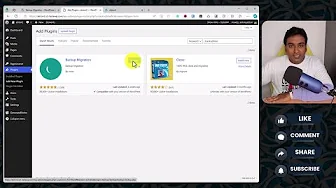
Step 3: Install and Activate
Click Install Now on the Backup Migration (Backup Bliss) plugin. Once installed, click Activate.
After activation, the plugin will ask whether you want to send non-sensitive usage data. This is entirely optional. I personally skip it, but it is harmless either way.
You will now see Backup Migration in your WordPress dashboard sidebar. Click on it to open the plugin.
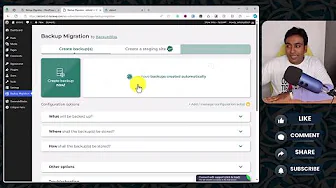
That is it. You are ready to create your first backup.
How to Create a Manual WordPress Backup
Creating a manual backup is the simplest thing you will do in WordPress today. Here is the process.
Step 1: Click the Backup Button
On the Backup Migration dashboard, you will see a large button to create a backup. Click it.
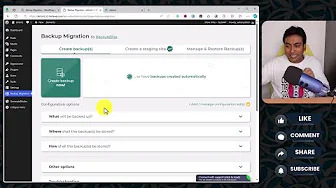
Before the backup starts, the plugin shows you a confirmation screen with the estimated backup size. For my test site, it showed 16.19 MB. This gives you a clear idea of how much disk space the backup will use.
Step 2: Confirm and Wait
Click the big confirmation button. The backup process runs in the background and typically completes in under a minute for sites under 500 MB.
Step 3: Download Your Backup
Once the backup completes, you will see a success message with a Download Backup button. You can either:
- Download the backup file to your local computer (recommended)
- Close the window and access the backup later from the Manage & Restore tab
The plugin creates a compressed ZIP file of your entire site, including your database, themes, plugins, media files, and all WordPress settings.
I always recommend downloading a copy to your local computer or cloud storage. If your hosting server crashes, your on-server backups go down with it. A local copy is your safety net.
When to Create Manual Backups
Create a manual backup before any of these situations:
- Before updating WordPress core (major version updates like 6.4 to 6.5)
- Before updating plugins or themes (especially if you have not updated in a while)
- Before making significant content changes (deleting pages, restructuring categories)
- Before changing your hosting provider (always have a backup before migration)
- After publishing important content (lock that backup so you never lose it)
Think of manual backups as snapshots. Every time you backup WordPress site files this way, you freeze your site at a specific moment so you can always go back to that exact state.
When I was migrating one of my niche sites from one hosting provider to another last year, I created a manual backup right before the migration. The migration failed on the first attempt. Because I had that backup, I restored the original site in under a minute and tried again the next day. Without the backup, I would have been staring at a broken site with no way to recover.
How to Schedule Automatic WordPress Backups
Manual backups are great for specific moments, but you need automatic backups running in the background for ongoing protection. Here is how to set that up.
Step 1: Enable Automatic Backups
On the Backup Migration dashboard, click the large toggle button for automatic backups.
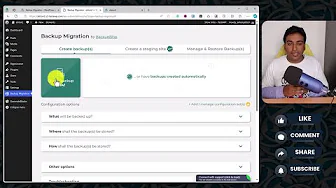
Step 2: Choose Your Frequency
You have three options:
| Frequency | Best For | Example |
|---|---|---|
| Daily | Active blogs, eCommerce stores, membership sites | You publish content daily or have customer transactions |
| Weekly | Standard business sites, blogs with 1-3 posts per week | Most small business WordPress sites |
| Monthly | Brochure sites, portfolio sites with rare updates | Your site content rarely changes |
Pick the frequency that matches how often your site content changes. If you publish blog posts twice a week, weekly backups make sense. If you run a WooCommerce store with daily orders, go with daily backups.
Step 3: Set the Day and Time
Choose the day of the week and the time you want backups to run.
Important: The time setting uses your server’s clock, not your local time. Click “Learn More” in the plugin to see your current server time and adjust accordingly.
Schedule backups during your lowest traffic period. You can find this in Google Analytics by checking the “Users by time of day” report. For most sites, that is somewhere between 2:00 AM and 5:00 AM server time.
Step 4: Set Backup Retention
This determines how many backup files the plugin keeps on your server. The maximum is 20. When the limit is reached, the oldest backup is automatically deleted to make room for the new one.
Here is the math you need to think about:
Your site size x Number of backups = Total disk space used
If your site is 10 MB and you keep 20 backups, that is 200 MB of disk space. Manageable.
If your site is 1 GB and you keep 20 backups, that is 20 GB of disk space. That could be a problem on shared hosting with limited storage.
My recommendation for most sites:
- Small sites (under 100 MB): Keep 10-15 backups
- Medium sites (100 MB to 500 MB): Keep 5-10 backups
- Large sites (500 MB to 2 GB): Keep 2-5 backups
One Limitation to Know About
The free version of Backup Bliss has one quirk: at least one visitor needs to visit your site to trigger the scheduled backup. The plugin uses WordPress cron, which is event-driven rather than time-driven.
For most business sites with regular traffic, this is never an issue. But if you run a brand-new site with almost no visitors, your scheduled backups might not trigger exactly on time.
A simple workaround is to visit your site yourself on backup day. Or, if you have access to your hosting cPanel, set up a real server cron job to hit wp-cron.php at your scheduled time.
How to Manage Your WordPress Backups
After creating backups (manually or automatically), you can manage them all from the Manage & Restore tab in the plugin dashboard.
Here is what you will see:
- List of all backups with dates and file sizes
- Download button for each backup to save locally
- Restore button to roll back your site to that backup
- Lock/Unlock toggle for each backup
Understanding Locked vs. Unlocked Backups
This is an important distinction:
- Locked backups (manual backups): Only you can delete them. The automatic rotation will never touch them. Lock a backup when it represents a known-good state of your site.
- Unlocked backups (automatic backups): The plugin will automatically delete the oldest unlocked backup when it reaches your retention limit.
Best practice: After making a major site change (new design, new plugin configuration, big content update), create a manual backup and keep it locked. This way, even if your automatic backups cycle through, you always have that stable snapshot available.
How to Restore WordPress Site From a Backup
This is the moment that matters. Something went wrong, and you need to get your site back. Here is how.
Option 1: Restore From Server Backup
If the backup file is still on your server (visible in the Manage & Restore tab):
- Go to Backup Migration > Manage & Restore
- Find the backup you want to restore
- Click the Restore button
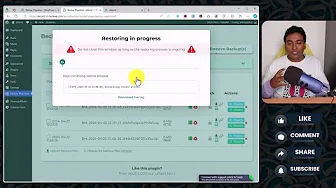
- The plugin will warn you: “Any existing files will be replaced.” This is expected. When you restore a backup, your current site files and database are overwritten with the backup contents.
- Click Yes to confirm, then click Start Restoring
- Wait for the restoration to complete (usually under a minute)
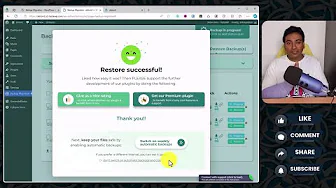
That is it. Your site is back to the exact state it was in when that backup was created.
Option 2: Restore From a Downloaded Backup File
If your server backups are gone (hosting crash, new server, fresh WordPress install) but you have a backup file saved on your computer:
- Go to Backup Migration > Manage & Restore
- Click Upload Backup File
- A file explorer opens. Select the backup ZIP file from your computer.
- Wait for the upload to complete
- Click Refresh to see the uploaded backup in your list
- Click Restore and follow the same confirmation steps as Option 1
This is exactly why I recommend always downloading a copy of your backups to local storage or cloud storage. If your hosting goes down completely, you can set up a fresh WordPress install anywhere, install Backup Bliss, upload your backup file, and restore your entire site.
What Gets Restored?
When you restore a WordPress backup from Backup Bliss, everything comes back:
- All your pages and blog posts
- Your WordPress database (users, settings, options)
- Your theme and theme customizations
- All installed plugins and their settings
- Your media library (images, videos, PDFs)
- Your SEO settings (including SEOPress configurations)
- Your menu structure, widgets, and sidebar content
The only thing that does not restore automatically is your hosting server configuration (SSL certificates, server-level redirects, PHP version). Those are managed by your hosting provider, not WordPress.
WordPress Backup Best Practices
After using backups across 100+ sites, here are the practices I follow:
1. Follow the 3-2-1 Backup Rule
Keep 3 copies of your data, on 2 different storage types, with 1 copy offsite.
For a WordPress site, this means:
- Copy 1: On your hosting server (automatic backups via Backup Bliss)
- Copy 2: Downloaded to your local computer
- Copy 3: Uploaded to cloud storage (Google Drive, Dropbox, or similar)
2. Test Your Backups
A backup you have never tested is a backup you cannot trust. At least once every 3 months, take a backup file and try restoring it on a staging environment or a local WordPress install using a tool like LocalWP.
If the restore works, your backup strategy is solid. If it fails, you catch the problem before an emergency.
3. Backup Before Every Update
This is non-negotiable. Before running WordPress core updates, plugin updates, or theme updates, create a manual backup and lock it. Updates are the #1 cause of WordPress site breaks.
A freelancer I know, Priya, lost three days of work when a WooCommerce update broke her client’s checkout page. She had no backup. She had to manually recreate the checkout flow, test it, and re-launch. Three days of billable work, gone. A 60-second backup would have saved all of it.
4. Monitor Your Disk Space
If you are on shared hosting with limited storage, keep an eye on how much space your backups are consuming. Twenty copies of a 1 GB site is 20 GB. Most shared hosting plans give you 10-50 GB total.
Set your retention to 3-5 backups if disk space is tight. Quality over quantity. One good recent backup is worth more than 20 outdated ones.
5. Secure Your Backup Files
Backup files contain your entire WordPress database, including user credentials and potentially sensitive customer data. If someone gets access to your backup file, they effectively have a copy of your entire site.
- Do not share backup files over unsecured channels
- Delete old backup downloads from your computer periodically
- If your site handles sensitive data (customer info, payments), encrypt backup files before cloud storage
Backup Bliss Free vs. Premium: Do You Need to Upgrade?
Here is a quick comparison:
| Feature | Free | Premium |
|---|---|---|
| Manual one-click backup | Yes | Yes |
| Automatic scheduled backups | Yes | Yes |
| Full site restore | Yes | Yes |
| Maximum backup size | 2 GB | Unlimited |
| Cloud storage (Google Drive, Dropbox) | No | Yes |
| File/database exclusions | No | Yes |
| Priority support | No | Yes |
My verdict: If your site is under 2 GB and you are willing to manually download backups for offsite storage, the free version is all you need. Upgrade to premium only if you need larger backups or automated cloud storage.
How Backup Bliss Compares to Other Free Plugins
You might be wondering how Backup Bliss stacks up against other popular free backup plugins. Here is a quick overview based on my testing:
- UpdraftPlus Free: The most popular WordPress backup plugin with over 3 million installs. Its free version includes cloud storage (Google Drive, Dropbox), which Backup Bliss does not offer for free. However, UpdraftPlus has a more cluttered interface and the restore process requires more clicks. If cloud storage is a must-have for free, UpdraftPlus is worth considering.
- All-in-One WP Migration: Excellent for site migration but limited as a backup solution. The free version caps exports at 512 MB (sometimes less depending on your server). Not ideal for ongoing backup routines.
- Duplicator: Strong for creating site packages for migration. The free version lacks scheduled backups entirely, making it a poor choice for ongoing site protection.
For straightforward wordpress backup and restore with the simplest interface, Backup Bliss wins. For free cloud storage integration, UpdraftPlus has the edge. Pick the one that matches your priority.
Troubleshooting Common WordPress Backup Issues
Even with a reliable plugin, you might run into occasional problems. Here are the most common issues and how to fix them.
Backup Fails or Times Out
If your backup stalls at a certain percentage or throws a timeout error, the most likely cause is your server’s PHP execution time limit. Most shared hosting plans set this to 30 or 60 seconds, which may not be enough for larger sites.
Fix: Contact your hosting provider and ask them to increase the max_execution_time to 300 seconds (5 minutes). You can also try adding this line to your .htaccess file:
php_value max_execution_time 300Backup File Is Too Large
If your backup exceeds 2 GB on the free plan, you have a few options:
- Clean up your media library. Delete unused images, old revisions, and draft posts before backing up. Plugins like Media Cleaner can help identify orphaned files.
- Optimize your images. Tools like ShortPixel can compress your existing images, often reducing total media library size by 50-70%.
- Upgrade to premium if your site genuinely needs more than 2 GB after optimization.
Restore Gets Stuck
If the restore process hangs, try these steps:
- Clear your browser cache and try again
- Deactivate other plugins temporarily (some security plugins block file operations)
- Increase your PHP memory limit by adding
define('WP_MEMORY_LIMIT', '256M');to yourwp-config.phpfile - If all else fails, contact your hosting provider. Some hosts have server-level restrictions that interfere with file restoration.
Common WordPress Backup Questions
How often should I backup my WordPress site?
The answer depends on how often your content changes. A daily-updated blog or eCommerce store needs daily backups. A static business site that changes once a month needs monthly backups at most. The general rule: backup at least as often as you would be willing to lose work. If losing a week of changes would hurt, backup weekly.
Can I backup WordPress without a plugin?
Yes, technically. You can manually export your database via phpMyAdmin and download your wp-content folder via FTP. But this process is slow, error-prone, and does not give you a one-click restore option. For 99% of WordPress users, a backup plugin is the faster and safer approach.
Will backups slow down my WordPress site?
Only while the backup is actively running, and even then the impact is minimal. That is why I recommend scheduling backups during low-traffic hours. Once the backup completes, there is zero performance impact on your live site.
What happens if my hosting server crashes and I lose all backups?
This is exactly why you should download backup files to your local computer or cloud storage. If your server dies, your on-server backups die with it. Always keep at least one copy offsite.
Is 2 GB enough for the free version?
For most WordPress sites, yes. A typical small business site with 50-100 pages, a blog with a few hundred posts, and a media library with a few thousand images usually totals between 200 MB and 1.5 GB. You only hit the 2 GB limit if you have thousands of high-resolution images or video files hosted directly in WordPress.
Can I use Backup Bliss to migrate my WordPress site to a new host?
Yes. Create a backup on your old host, download the file, install WordPress and Backup Bliss on your new host, upload the backup file, and restore. It works as a migration tool, though dedicated migration plugins like All-in-One WP Migration offer a few more migration-specific features.
Does my hosting provider already backup my site?
Most hosting providers offer some form of backup, but you should never rely on it as your only safety net. Hosting backups vary wildly in quality. Some providers keep daily snapshots for 7-14 days. Others only backup weekly, or charge extra for restore access. I have seen hosting providers lose backup data during server migrations. Treat hosting backups as a bonus layer, not your primary strategy. Always maintain your own independent backups using a plugin you control.
Should I backup my staging site too?
If you do development work on a staging site before pushing changes to production, yes. Staging environments can contain hours of configuration, design tweaks, and testing work. Losing a staging site is not as catastrophic as losing production, but rebuilding it still wastes time. A quick manual backup before major staging changes is smart practice.
What to Do Next
You now know how to backup WordPress site files, schedule automatic wordpress backups, and restore your WordPress site from a backup when things go wrong. Here is your action plan:
- Right now: Install Backup Bliss and create your first manual backup
- Today: Download that backup to your computer or cloud storage
- This week: Set up automatic weekly backups with 5-10 backup retention
- This month: Test a restore on a staging environment to make sure it works
Backups are not exciting. They are not the kind of thing you post about on LinkedIn. But when your WordPress site breaks at 2 AM on a Sunday, and you restore it in 60 seconds instead of spending 60 hours rebuilding, you will be glad you spent five minutes setting this up.
If you want to protect your SEO rankings long-term, combine this backup strategy with a solid SEO fundamentals approach. Check out the best SEO tools I have tested across 100+ sites, or explore my Semrush tutorial to learn how to maximize your SEO tool investment.
Have questions about WordPress backups? Drop them in the comments below, and I will help you out.