
How to Create a New Gmail Account on Your Computer (Step-by-Step)
TL;DR: To create a new Gmail account on your computer, go to google.com, click Gmail, then click “Create an account.” Enter your name, choose a unique Gmail address, set a password, verify your phone number, and accept Google’s terms. The whole process takes about five minutes.
If you have never created a Gmail account before, or you need a second account for a specific purpose like SEO outreach, business communications, or separating personal from professional email, this guide covers every step.
I have been using multiple Gmail accounts for my SEO work for years. One for personal use, one for outreach campaigns, and one connected to Google Search Console and analytics tools. Knowing how to set up each one cleanly, with proper security from day one, saves you a lot of headaches later.
This tutorial walks you through the complete Gmail account creation process on a computer, including the parts most guides skip: choosing a usable email address, understanding what Google actually does with your phone number, setting up recovery options, and locking down your account security from the start.
What You Need Before You Start
Before you go to Google, have these ready:
- A computer with a browser open
- A mobile phone number you have access to (Google will send a verification code)
- A secondary email address if you have one (optional, for account recovery)
- A strong password in mind (at least 12 characters, mix of letters, numbers, symbols)
That is it. No payment details, no existing Google account required.
Step 1: Go to Google and Click Gmail
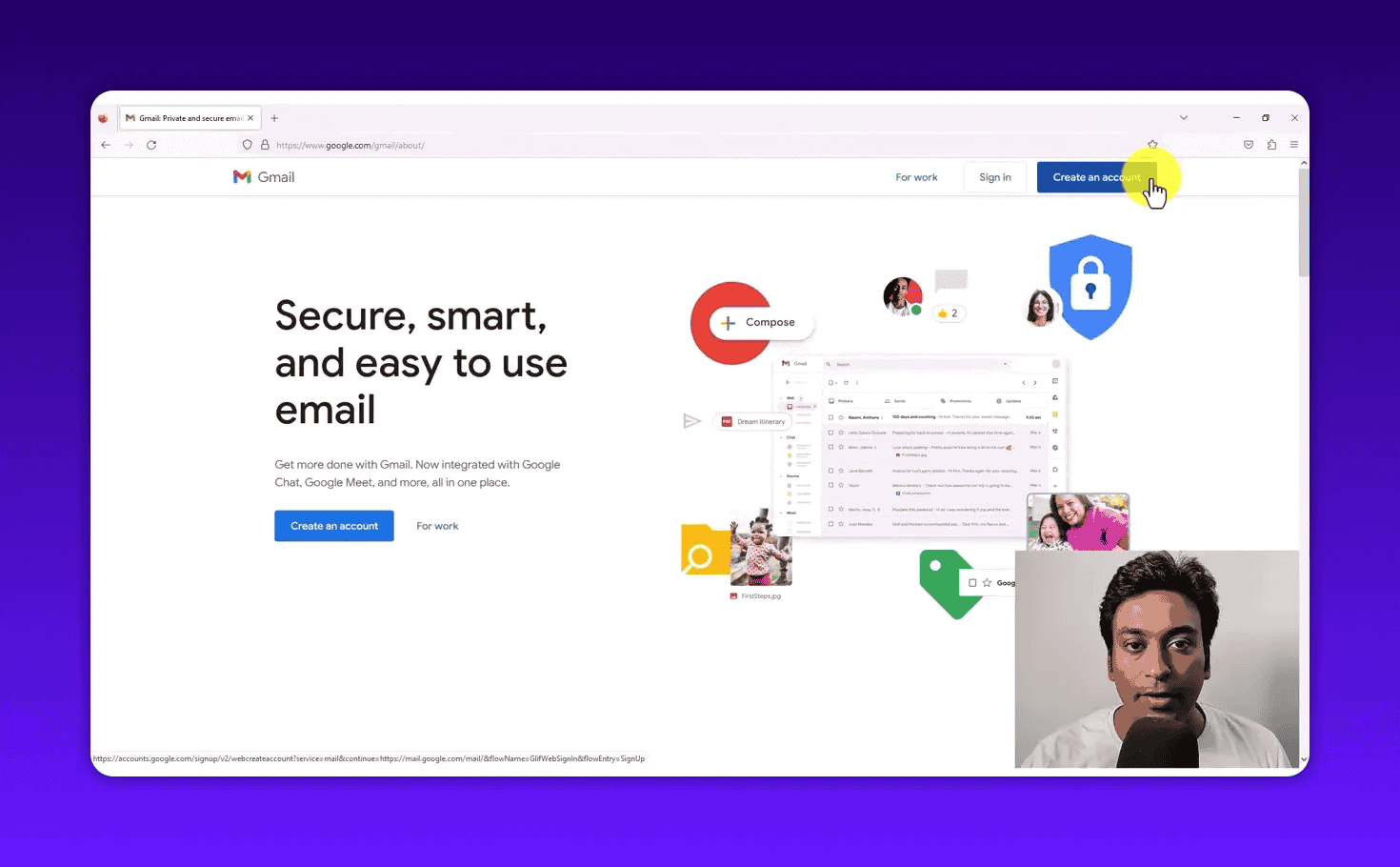
Open your browser and go to google.com. In the top right corner of the Google homepage, you will see a link that says Gmail. Click that.
This takes you to the Gmail homepage. If you are not signed in to any Google account, you will see a sign-in screen with a “Create account” link below the main button.
Click “Create account.”
Google will ask you one question: are you creating this account for personal use, or for work and business? Choose based on your situation. For most purposes, personal is fine.
Step 2: Enter Your Name
The first screen asks for your first name and last name. This name is what other people see when they receive emails from you.
A few things worth knowing here:
- You can use any name you want, including a business name or a pseudonym
- You can change this name later inside your Gmail settings without creating a new account
- If this is a dedicated outreach or business account, use your full professional name or your brand name
Enter the name you want associated with this Gmail address and click Next.
Step 3: Set Your Date of Birth and Gender
Google asks for your date of birth and gender. This information is used to comply with age-related privacy laws and to customize certain features. It is not publicly visible to people emailing you.
Select your birth date from the dropdowns and choose your gender preference. Click Next.
Step 4: Choose Your Gmail Address
This is the most important step in the whole process.
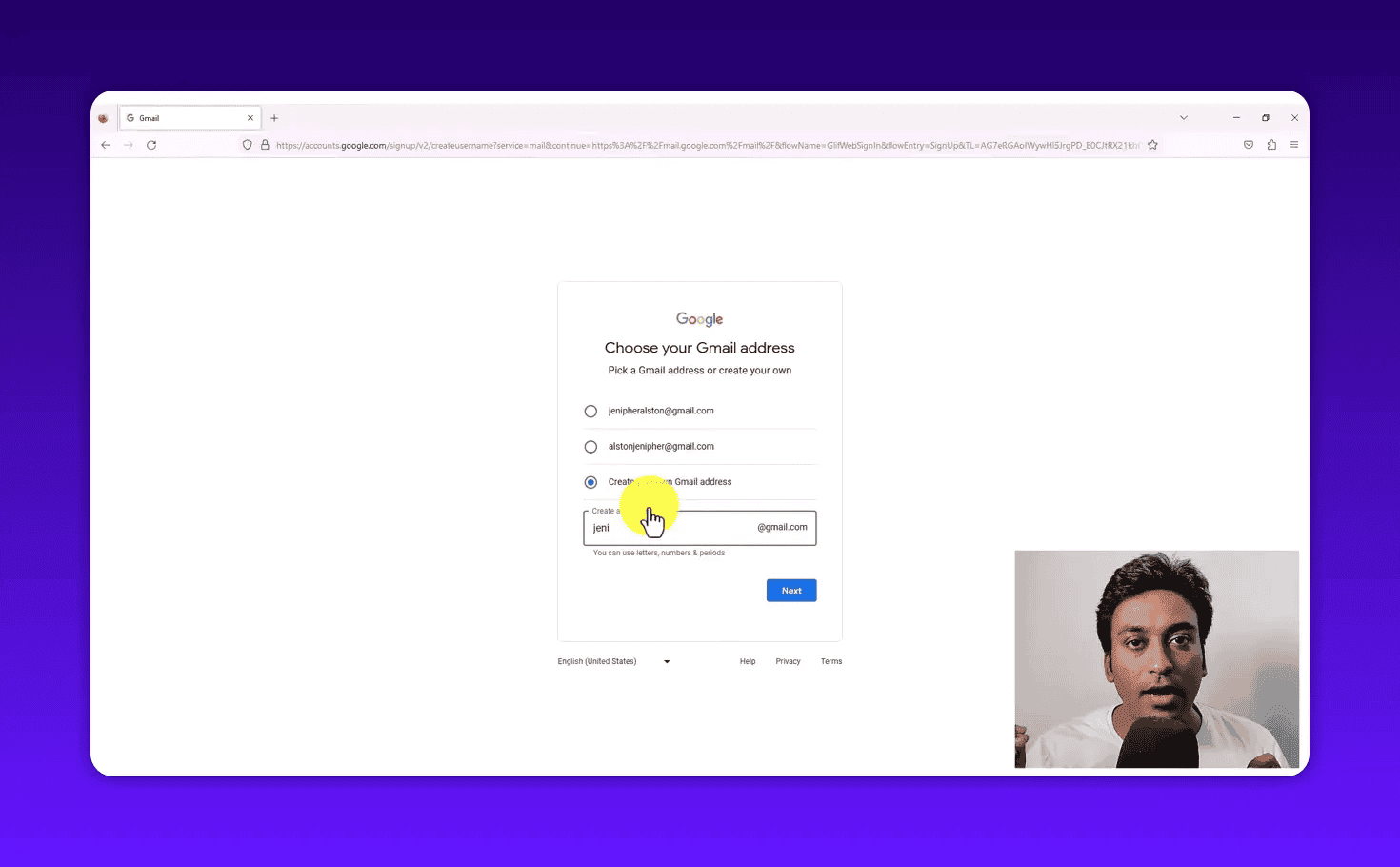
Your Gmail address is the part before @gmail.com. It is permanent once set, and no two Gmail accounts can share the same address. If johnsmith@gmail.com already exists, it is taken forever.
Google will show you two or three suggested addresses based on your name. In most cases, simple first-name and last-name combinations like johnsmith@gmail.com are already taken. Google generates suggestions with numbers or abbreviations to help, for example jsmith1987@gmail.com.
If you do not like the suggestions, click “Create your own Gmail address” and type what you want. Gmail allows letters, numbers, and periods in the address. No spaces, no special characters other than a period.
Tips for choosing a Gmail address:
- For personal use, your name plus a memorable number works fine
- For SEO outreach or business use, choose something professional: firstname.lastname@gmail.com or brand@gmail.com
- Avoid addresses that look like spam bots: random strings of characters damage deliverability before you send a single email
- Keep it short enough to type without errors when giving it verbally
If the address you want is available, you can proceed. If not, Google will tell you immediately and you will need to try a different variation.
Step 5: Create a Strong Password
Once your address is confirmed as available, create your password.
Google requires a minimum of eight characters, but do not stop there. Use at least 12 characters. Include uppercase letters, lowercase letters, numbers, and at least one symbol. A password like this: MyOutreach@2026! is far stronger than password123.
Type your password in the first box. Type the exact same password in the confirmation box below it. If they do not match, Google will flag it and ask you to re-enter.
Click Next.
Step 6: Phone Number Verification
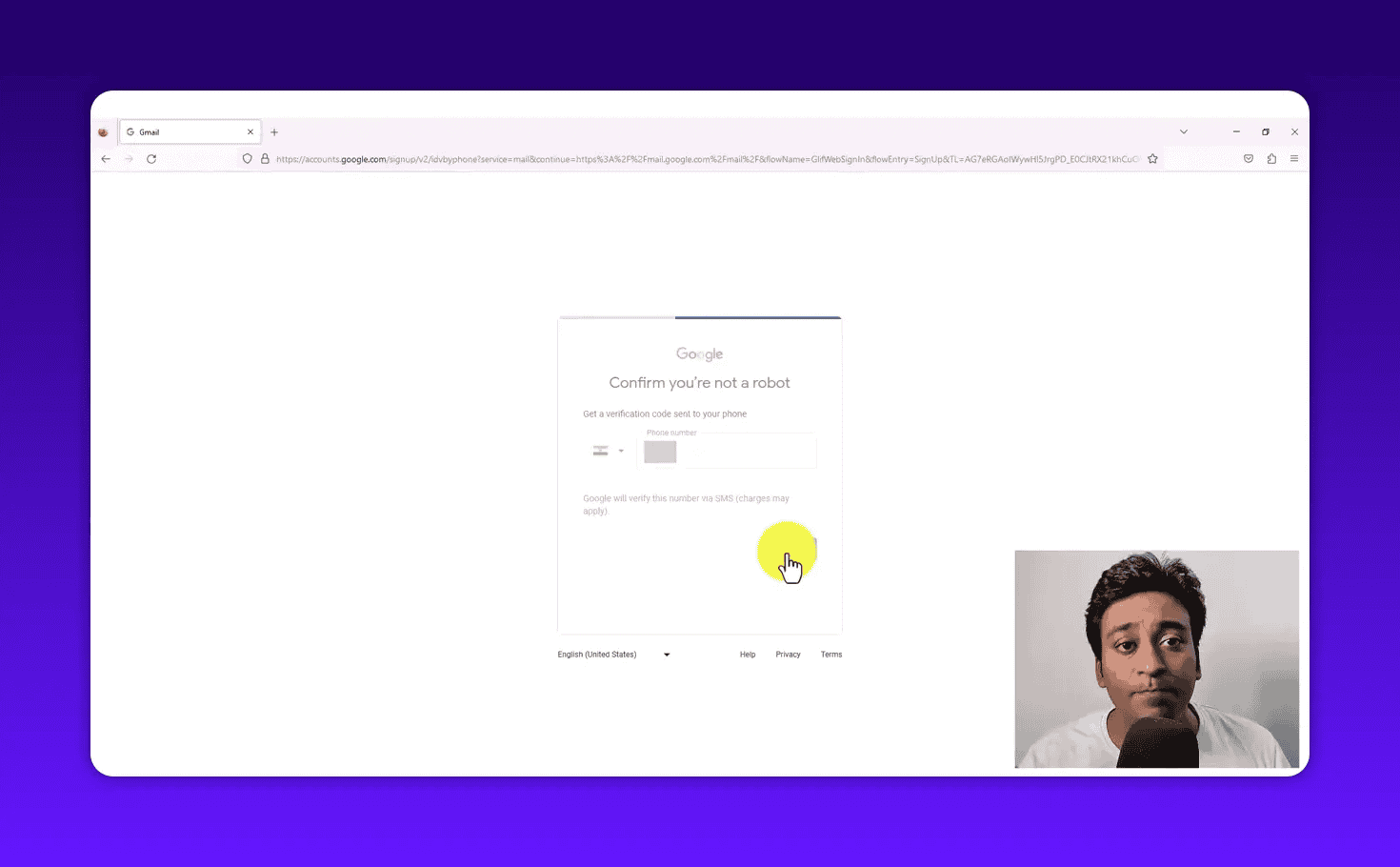
Google will now ask for a mobile phone number. This step is mandatory for most new accounts. It is not optional.
Why does Google require this?
People create Gmail accounts in bulk for spam campaigns and fake profile networks. Phone verification is Google’s method of confirming you are a real person with a real device, not an automated script creating thousands of accounts.
Google states clearly on this screen that your number will only be used for verification. They will not use it to send you marketing messages at this stage (though they may ask later if you want to link it for other services).
How to enter your number:
- Click the flag icon to select your country code if it is not already set to your country
- Type your mobile number without the country code prefix
- Click Next
Google sends a six-digit OTP (one-time password) via SMS to that number within a few seconds. Enter the six digits in the verification screen. If you did not receive the message, click the link to request a new code.
Step 7: Add a Recovery Email (Recommended)
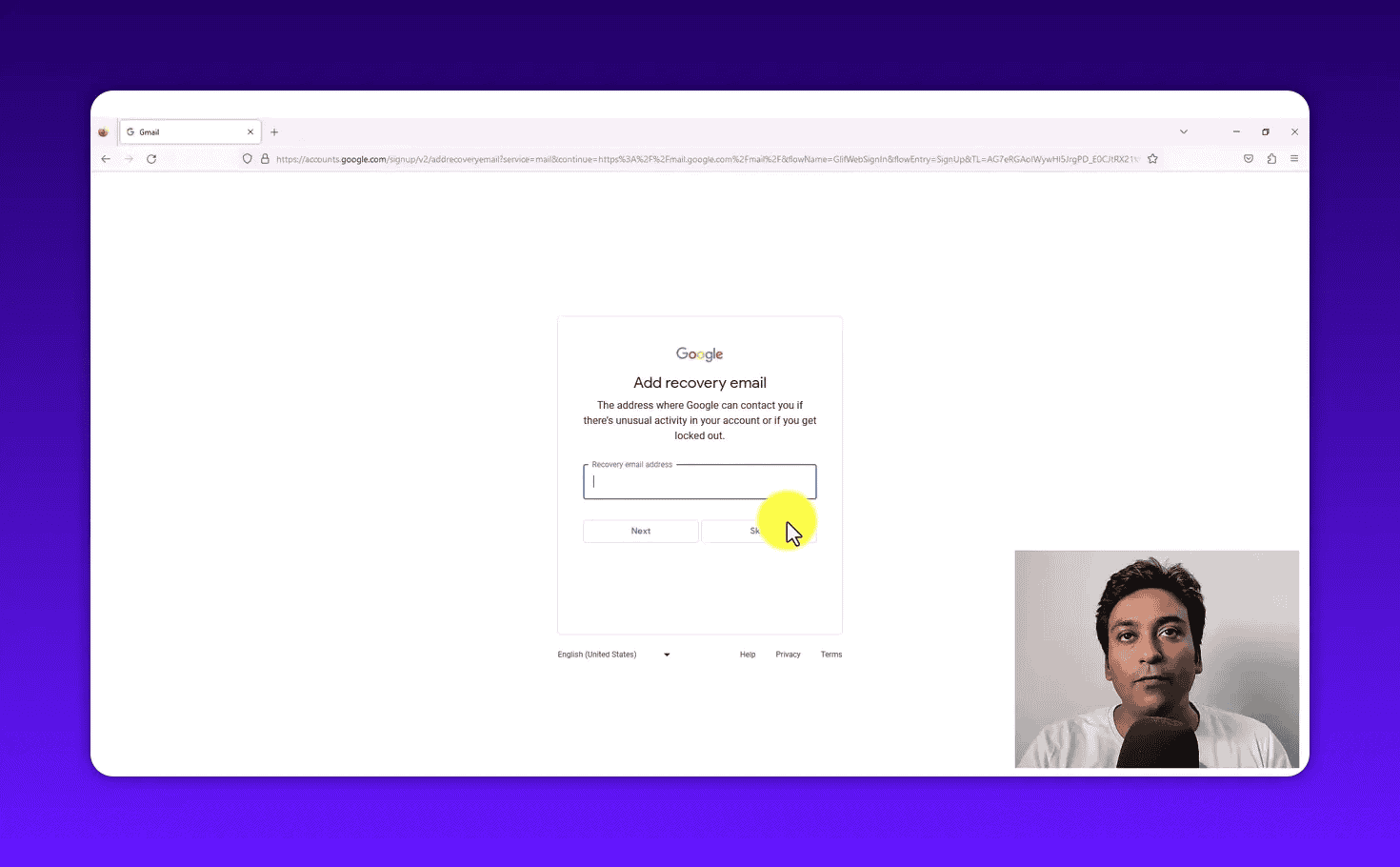
After phone verification, Google offers you the option to add a recovery email address.
This is a different email account (not the one you are creating) that Google uses to reach you if something goes wrong: forgotten password, suspicious login detected, or account locked.
Should you add one?
If you have any other email account, including an old one you rarely use, add it here. Recovery email is genuinely useful. I have seen people lose access to Google accounts permanently because they skipped recovery options and then forgot their password six months later with no way back in.
If you do not have another email address right now, click Skip. You can add a recovery email later through account settings.
If you do have one, type it in and click Next.
Step 8: Decide Whether to Add Your Phone Number to the Account
This step confuses a lot of people because you just verified your identity with a phone number. Why is Google asking about a phone number again?
Here is the difference:
- Step 6: Google used your number only to verify you are human. That number is not permanently linked to your account.
- Step 8: Google is asking if you want to save that number as part of your account profile for ongoing security purposes.
Google says this number will be used only for account security and will not be visible to others. Adding it means if you ever lose access to your account, they can send a recovery code to your phone.
You can click Yes, I’m in to link the number or click Skip to leave your account without a linked phone number.
For accounts used in SEO outreach or business work, linking the phone number is smart. It gives you an extra recovery option.
Step 9: Review Account Information
Google shows you a summary screen of everything you entered: your name, the Gmail address you chose, and any recovery options you added.
Review the details. If anything looks wrong, use the Back button to go and fix it. Once you proceed, the account is created and the email address is permanently yours.
Click Next.
Step 10: Privacy and Terms
The final screen before your account is live is Google’s privacy and terms agreement.
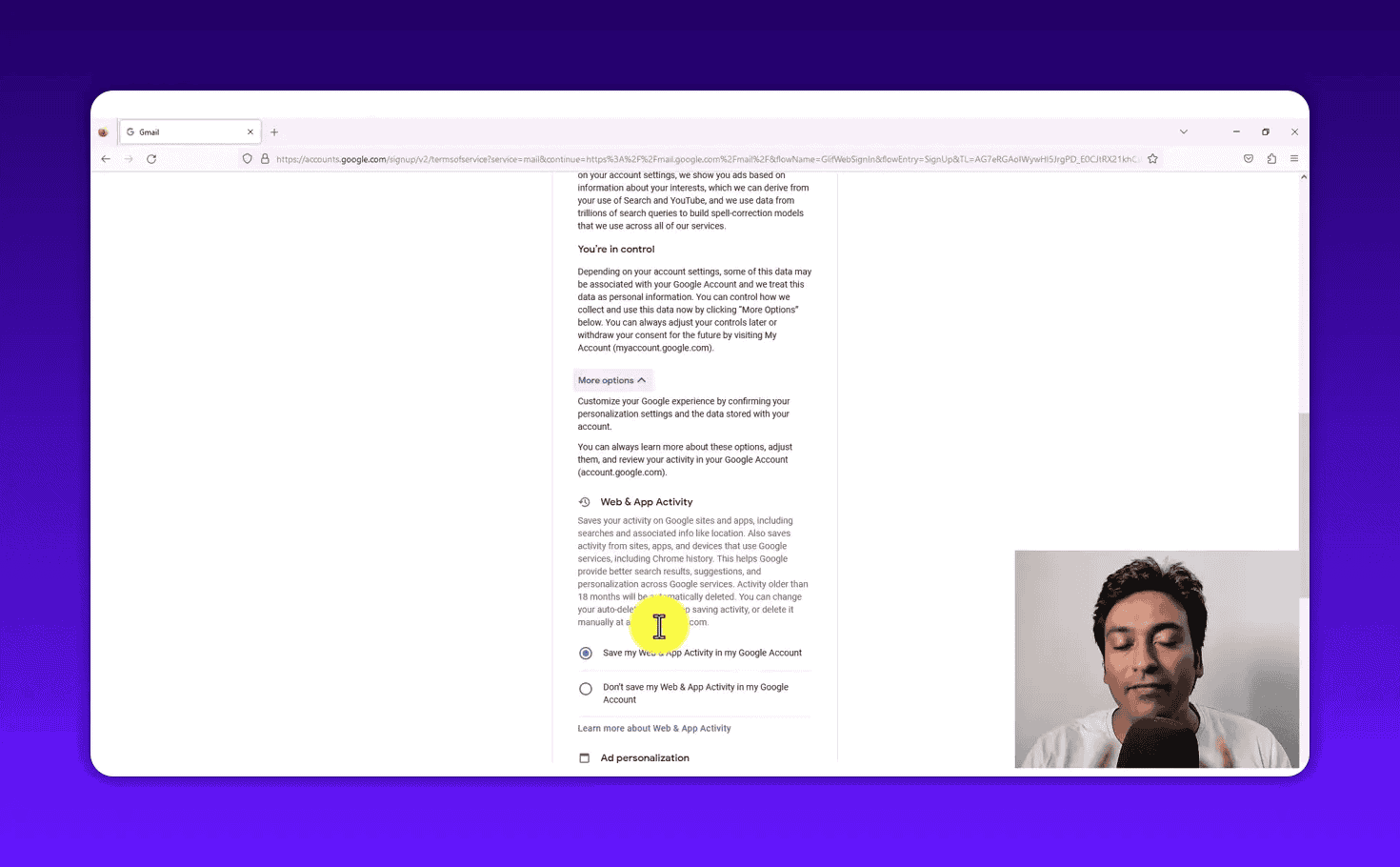
Google displays several data settings here:
- Web and App Activity: Whether Google saves your browsing and search history when signed in to personalize your experience
- Ad personalization: Whether ads shown to you are tailored based on your activity
- YouTube history: Similar browsing and watch history settings for YouTube
You are not required to turn on any of these to create the account. Click More options to review each setting individually, or scroll down and click I agree to proceed with Google’s defaults.
There is no right or wrong answer here. It is a personal preference about data sharing. For a dedicated work or outreach account, I turn off as much tracking as possible, mainly because I do not want business browsing history mixing with personalized suggestions.
Click I agree when you are ready.
Your Gmail account is now created.
What Your New Gmail Inbox Looks Like
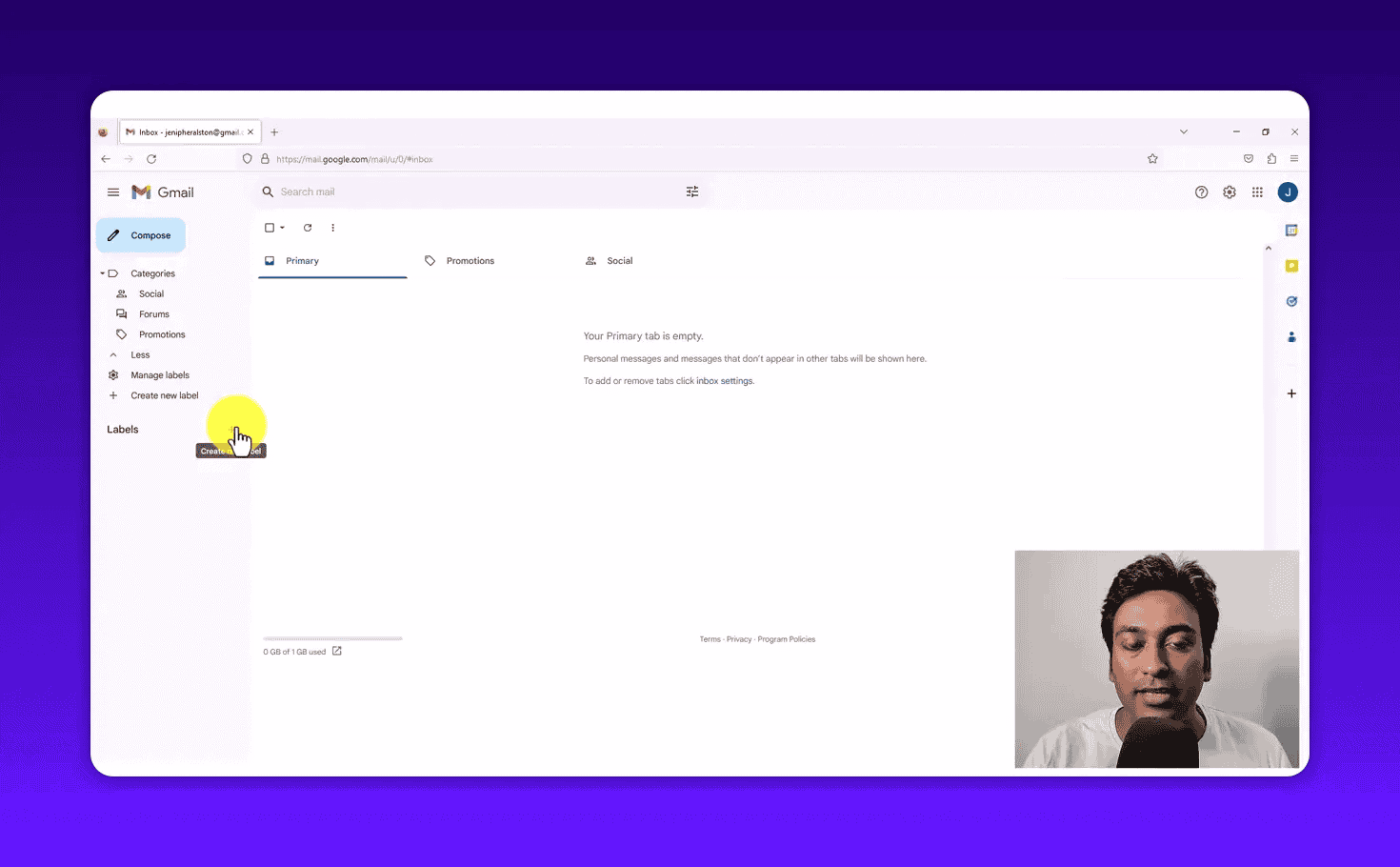
Once you accept the terms, Gmail opens your inbox. It will be empty, which is exactly right. Google may send one welcome message from the Gmail team.
The left sidebar shows the standard Gmail categories: Inbox, Starred, Snoozed, Sent, Drafts, and More. At the bottom of the sidebar, you will see a Labels section. This is where you can organize emails into custom folders.
For outreach accounts, I create labels immediately on setup. Something like Sent Campaigns, Responses, and Follow-Ups. When you send cold emails or SEO outreach messages and replies start coming in, having labels already set up makes the inbox manageable.
To create a label, scroll to the bottom of the left sidebar and click New label. Give it a name and click Create. Done.
The blue Compose button in the top left lets you write and send a new email from this account straight away.
How to Secure Your Gmail Account After Creation
Do not skip this step. A few minutes on account security right after creation prevents serious problems later.
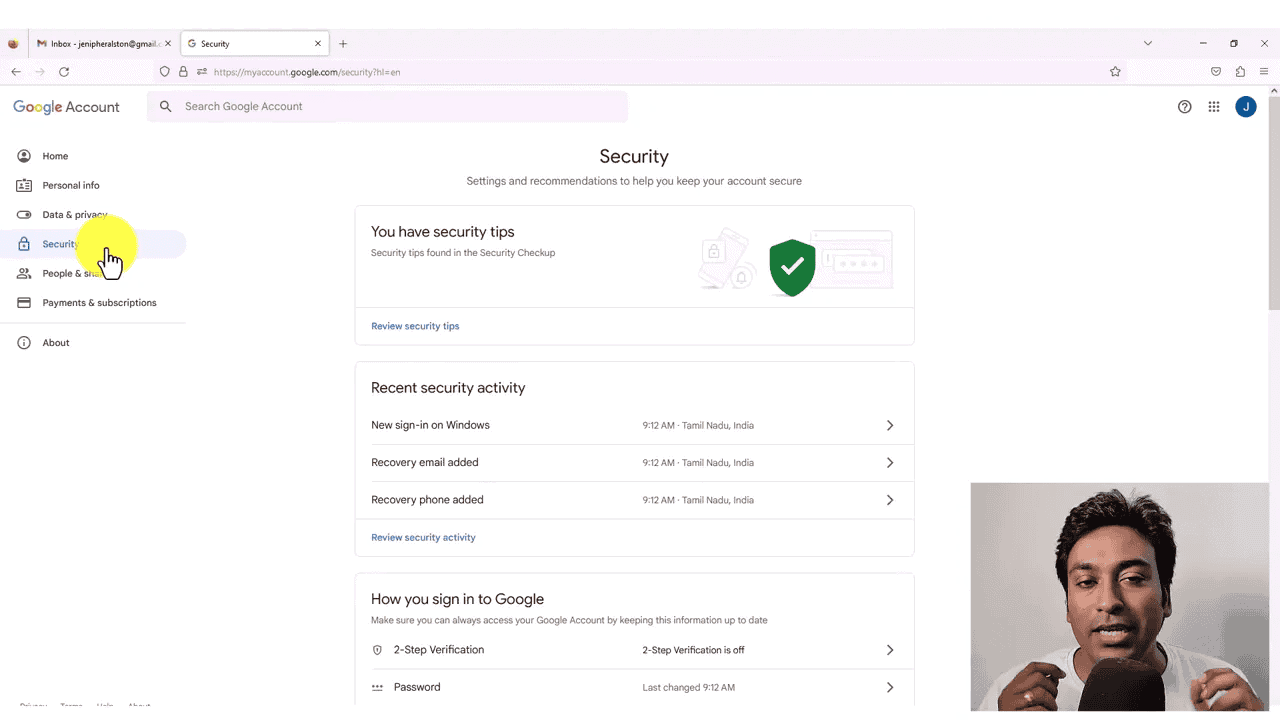
Click on your profile picture (top right corner) and select Manage your Google Account. Go to the Security tab.
This section shows you:
- Recent security activity: Every device and location that has accessed your account. Check this regularly. If you see a login from a country you have never visited, your account has been compromised.
- How you sign in: Whether you have a two-factor verification method set up. If not, set one up now.
- Two-Factor Authentication (2FA): Google calls this 2-Step Verification. Enable it. You will enter your password plus a second code from your phone each time you sign in. It makes your account far harder to break into.
- Password status: When you last changed your password and whether Google has detected it in any known data breaches.
- Recovery options: Your recovery email and phone number, with options to verify or change them.
For accounts used in SEO outreach, pay attention to the security activity log. Outreach accounts are more visible than personal accounts. You are putting the email address on websites, in emails to strangers, and potentially in your SEO tool logins. That exposure increases risk.
Set up 2FA immediately. It takes three minutes and it is the single most important security step you can take.
Using This Gmail Account for SEO Outreach
If you created this account specifically for SEO link building or outreach campaigns, a few additional setup steps will help your deliverability and professionalism.
Set up a proper signature. Go to Settings (the gear icon in Gmail), click “See all settings,” go to the General tab, and scroll down to Signature. Add your name, title, and a link to your website. A proper signature increases reply rates for outreach.
Warm up the account before sending bulk emails. A brand-new Gmail address with zero email history sent in a mass cold outreach campaign will land in spam. For the first two to four weeks, use the account normally: send and receive a few legitimate emails per day, reply to messages, and let Gmail build a sending reputation.
Do not use this account for Gmail subscription signups or newsletters. Keep it clean and dedicated to outreach. Every spam newsletter that arrives damages your inbox reputation over time.
Connect it to your SEO tools carefully. If you are using this Gmail to sign in to Google Search Console, Ahrefs, or Semrush, make sure you are logged into the correct account in your browser first. Connecting tools to the wrong account is an easy mistake when managing multiple Gmail addresses.
For a full breakdown of how I set up SEO outreach workflows and what tools I use alongside Gmail, read my free keyword research template and SEO fundamentals for business owners guides.
Common Gmail Account Creation Questions
Can I create a Gmail account without a phone number?
Google now requires phone verification for most new accounts. It is possible to skip verification on older account creation flows, but in practice, most users will need to provide a mobile number. This is a spam prevention measure. If you do not want to use your primary number, you can use a prepaid SIM or a number from a trusted family member.
Can I change my Gmail address after creating it?
No. Your Gmail address is permanent. You can change your display name (the name other people see), but the actual email address before @gmail.com cannot be changed once set. If you want a different address, you need to create a new account.
How many Gmail accounts can I have?
Google does not publish an official limit on the number of Gmail accounts one person can own. In practice, you can have multiple accounts. Each one requires a unique email address and ideally a phone number for verification. I personally manage several accounts for different purposes without issue.
Is it safe to use Gmail for SEO outreach?
Yes, with proper setup. Use a dedicated account (not your personal Gmail), warm it up before bulk sending, set up a professional signature, and monitor the security tab regularly. Avoid sending more than 500 emails per day from a single Gmail account, as this can trigger spam filters.
What is the difference between a Gmail account and a Google account?
A Gmail account is a Google account. When you create a Gmail address, you automatically get access to all Google products: Google Drive, Google Docs, Google Search Console, Google Analytics, YouTube, and more. The Gmail address is simply the identifier for that account.
Conclusion
Creating a Gmail account on your computer takes about five minutes. The process is straightforward: go to google.com, click Gmail, choose a username, verify your phone, set recovery options, and accept the terms.
The parts that matter most are: choosing a professional, memorable Gmail address from the start (you cannot change it later), adding a recovery email so you can regain access if something goes wrong, and enabling two-factor authentication immediately after creation.
If you are setting up this account for SEO outreach, take the extra steps: build a signature, warm up the account before bulk sending, and keep it separate from your personal Gmail.
For more on how I use dedicated email accounts as part of a structured SEO workflow, see my full guide on how to use Google Search Console for keyword research and the AI search SEO guide that covers how to get your site cited by AI tools.