
AI SEO Internal Linking Tool: Build a Free Link & Authority Link Automator with Google AI Studio
TL;DR: You can build a free AI-powered internal linking tool using Google AI Studio in under 30 minutes, no coding required. Paste a build prompt, connect your sitemap URLs, and the tool automatically discovers internal link opportunities and authority external links for any page on your site, then injects them with one click.
I want to be honest about where this tool came from. Some friends in my Facebook community asked how I keep building these practical AI SEO tools when there are so many flashy options out there. The answer is simple. I build tools I actually need, not tools that look impressive on a demo.
Internal linking was one of those jobs I kept postponing. I knew it mattered. But manually scanning 200+ published posts to find contextual opportunities for a new article? That takes hours. Paid tools like Link Whisper charge $77+ per year. Outsourcing it means someone else deciding what links make sense on your site.
So I built my own free AI SEO internal linking tool using Google AI Studio and Gemini. I called it LinkWhisperer AI. This guide shows you every step to build yours, including the exact prompts, how to configure it, and how to use the one-click HTML injection feature that saves the most time.
Watch the full video walkthrough before you start:
What You Need Before You Start
Before building anything, get these ready:
- A Google account (to access Google AI Studio, which is free)
- Your site’s XML sitemap URL (usually
yourdomain.com/sitemap.xmloryourdomain.com/sitemap_index.xml) - 20-30 minutes of focused time
No credit card. No subscription. The free tier of Gemini API handles everything in this tutorial.
Step 1: Understand Internal Linking (and Why It Matters More Than You Think)
What is internal linking and why does it matter for SEO?
Internal linking is linking from one page on your site to another page on the same site. Search engines use these links to discover new pages, distribute ranking authority across your site, and understand the topical relationships between your content.
Here is what most guides skip. Internal linking does four distinct jobs for your SEO:
Discovery. When you publish a new post, Google finds it faster if existing pages link to it. Googlebot follows links. If no established page points to your new article, the crawl delay can stretch from days to weeks.
Authority distribution. Pages with more backlinks carry more PageRank. Internal links pass a fraction of that authority to linked pages. A single link from your highest-traffic pillar page can meaningfully boost a new article’s ranking potential.
Topic relevance. Linking your article on “keyword research for e-commerce” to your article on “best keyword research tools” tells Google these topics are related. It reinforces your topical authority for the subject cluster.
User experience. Readers who follow internal links stay on your site longer. Longer sessions and lower bounce rates are engagement signals that correlate with higher rankings.
The problem is doing this well at scale. If you have 50, 100, or 300 posts, manually reviewing every article for link opportunities is the kind of work that never makes it onto a to-do list.
That is the job this AI internal linking tool handles.
Step 2: Know What Your Tool Will Do (The Workflow in Plain English)
What does the AI internal linking tool actually do?
The tool does four things. It indexes your site’s pages using your sitemap XML. It analyzes the content of any target page you specify. It identifies pages in your knowledge base that are contextually relevant and suggests where links should appear in the target content. And it injects the approved links directly into the page HTML with one click.
Here is the full workflow:
- You create a project and add your sitemap URL
- The tool parses the sitemap and indexes all your page URLs
- You paste a target page URL (or raw HTML for unpublished content)
- Gemini AI analyzes the target content and cross-references it against your indexed pages
- You see a list of internal link suggestions with anchor text, target URL, and the exact sentence where each link belongs
- You also get authority external link suggestions (citing credible sources like Wikipedia, WHO, World Bank, or.gov pages)
- You approve or reject each suggestion
- One-click HTML injection inserts all approved links into the page source
The tool is not magic. It surfaces opportunities. You still decide which links are worth adding.
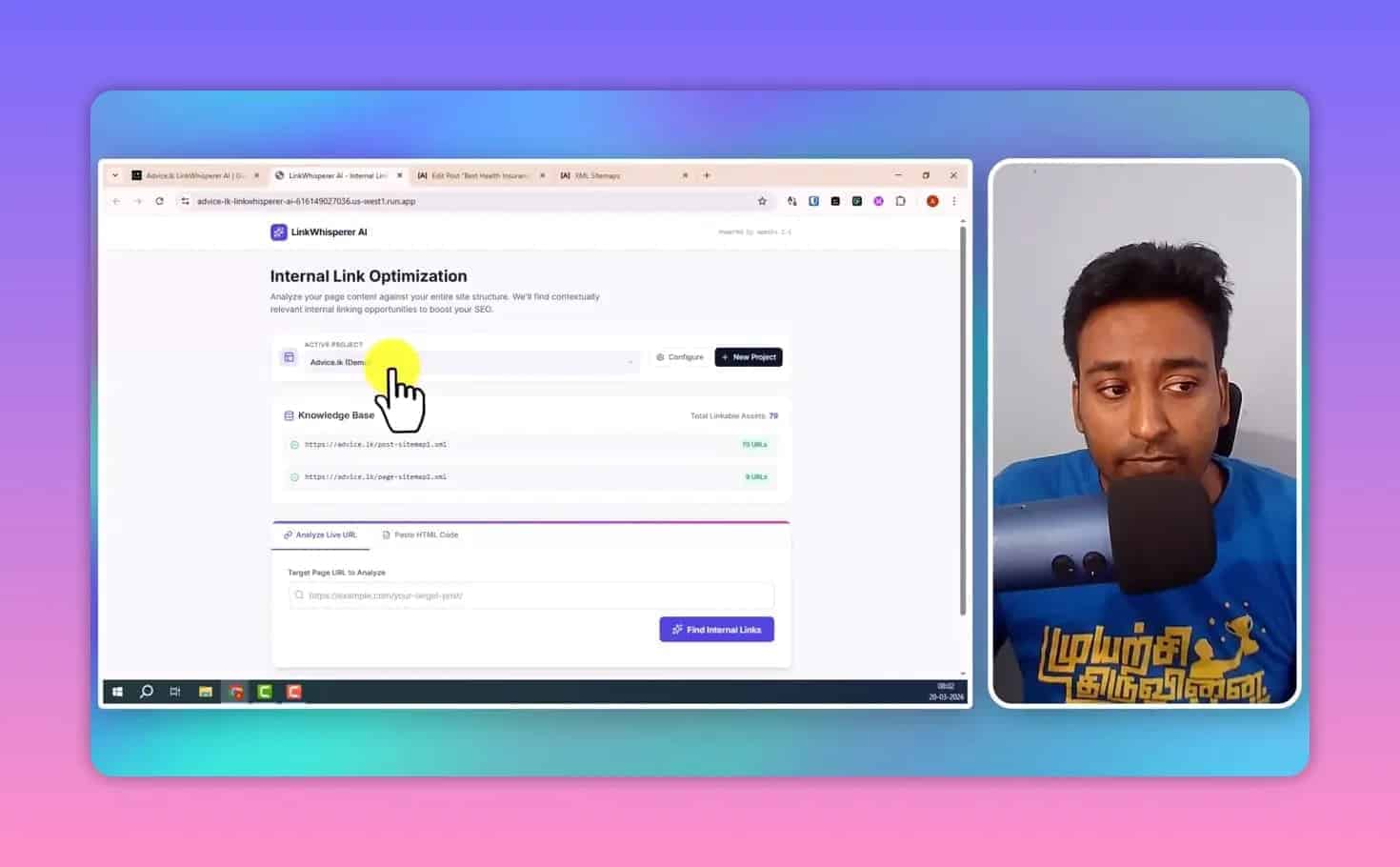
Step 3: Prepare Your Site Sitemaps (This Is the “Secret Sauce” Data Input)
Why does the sitemap matter so much?
The sitemap is how the tool knows which pages exist on your site. It is the knowledge base. Without it, the AI is guessing. With it, the AI matches content semantically against real URLs you own.
Before you open Google AI Studio, collect your sitemap URLs. Most WordPress sites with an SEO plugin generate sitemaps automatically. If you use SEOPress Pro, check yourdomain.com/sitemap.xml. If you use a sitemap index (one sitemap that points to multiple sitemaps), grab the index URL.
If you manage multiple websites, collect one sitemap URL per site. The tool supports multi-project management, so you can create a separate project for each domain and switch between them.
Pro Tip: Test your sitemap URL in a browser before pasting it into the tool. You should see raw XML with a list of <url> entries. If you get a 404 or see a rendered sitemap page, find the actual XML URL from your SEO plugin settings.
Step 4: Decide How Many Sites You’ll Manage (Single Project vs. Multiple Projects)
The tool supports multiple projects out of the box. Each project has its own sitemap URLs and indexed knowledge base. This is useful if you manage an agency portfolio, run multiple niche sites, or want to separate your main blog from a subdomain.
For a single site, you only need one project. Create it, add your sitemap URL, and you’re done.
For multiple sites, create one project per site. The project name is just a label (your blog name, the domain, whatever makes sense). The tool stores each project’s indexed URLs separately so there is no cross-contamination between sites.
Step 5: Build Your AI SEO Internal Linking Tool in Google AI Studio
Go to aistudio.google.com. Sign in with your Google account.
Click Create new and select Build an App (or look for the “Build with AI” option in the left sidebar, depending on which version of the interface you see).
This opens a prompt input field on the left and a live app preview on the right. Everything the AI builds appears in real time on the right side.
Step 6: Paste the Build Prompt (and What “Context” Means)
This is where you give the AI its instructions. Paste the main build prompt below into the left-side input field. Do not modify it unless you know what you are changing. The prompt is engineered to produce a specific app structure.
Main Prompt
Build me a web application called "LinkWhisperer AI" - an AI-powered SEO Internal Linking Tool.

## Core Objective
Create a tool that helps SEO professionals and content marketers automatically discover internal link opportunities and authority external link suggestions for their website content, using AI to analyze page content against a knowledge base of existing site pages.

## Key Features Required

### 1.Project Management
- Create multiple projects (one per website/client)
- Each project has a name, description, and one or more sitemap URLs
- Projects store their indexed URL knowledge base
- Switch between projects easily

### 2.Sitemap-Based Knowledge Base
- Accept XML sitemap URLs as input
- Parse sitemap XML to extract all page URLs
- Support sitemap index files (which point to multiple sitemaps)
- Display indexed URL count and last updated time
- Allow manual refresh of the knowledge base

### 3.Internal Link Discovery (Analysis Engine)
- Accept a target page URL or raw HTML/text content as input
- Analyze content semantically using Gemini AI
- Cross-reference against the indexed knowledge base
- Return structured suggestions with:
 - anchorText: the suggested anchor text
 - targetURL: the page to link to
 - contextSnippet: the exact sentence or phrase where the link should appear
 - relevanceScore: 1-10 confidence score
 - reason: why this link makes sense contextually

### 4.Authority Link Suggestions
- Alongside internal links, suggest 3-5 external authority links
- Focus on: Wikipedia, WHO, World Bank, government (.gov) sites, academic (.edu) sources
- Include citation context and reason for each suggestion

### 5.One-Click HTML Injection
- Accept raw page HTML as input
- Automatically insert all approved internal and external links into the HTML
- Wrap anchor text in proper <a href="..."> tags
- Return the modified HTML ready to paste back into the CMS

## UI/UX Design
- Clean, professional interface with dark sidebar for project management
- Main content area with tabs: Analysis, Knowledge Base, Settings
- Link suggestions displayed as cards with approve/reject toggles
- HTML editor for viewing and modifying injected output
- Status indicators for knowledge base indexing progress

## Technical Stack
- React with TypeScript
- Tailwind CSS for styling
- Lucide React for icons
- Gemini 1.5 Flash as primary model (fast, cost-effective for analysis)
- Gemini 1.5 Pro as fallback for complex multi-page analysis

## Expected JSON Output Schema
{
 "internalLinks": [
 {
 "anchorText": "string",
 "targetURL": "string",
 "contextSnippet": "string",
 "relevanceScore": number,
 "reason": "string"
 }
 ],
 "authorityLinks": [
 {
 "anchorText": "string",
 "targetURL": "string",
 "sourceType": "wikipedia|gov|edu|who|worldbank",
 "contextSnippet": "string",
 "reason": "string"
 }
 ]
}

Build the complete application in a single HTML file using CDN imports.Make it production-ready and fully functional.
Paste this into the prompt field and press Enter or click Run.
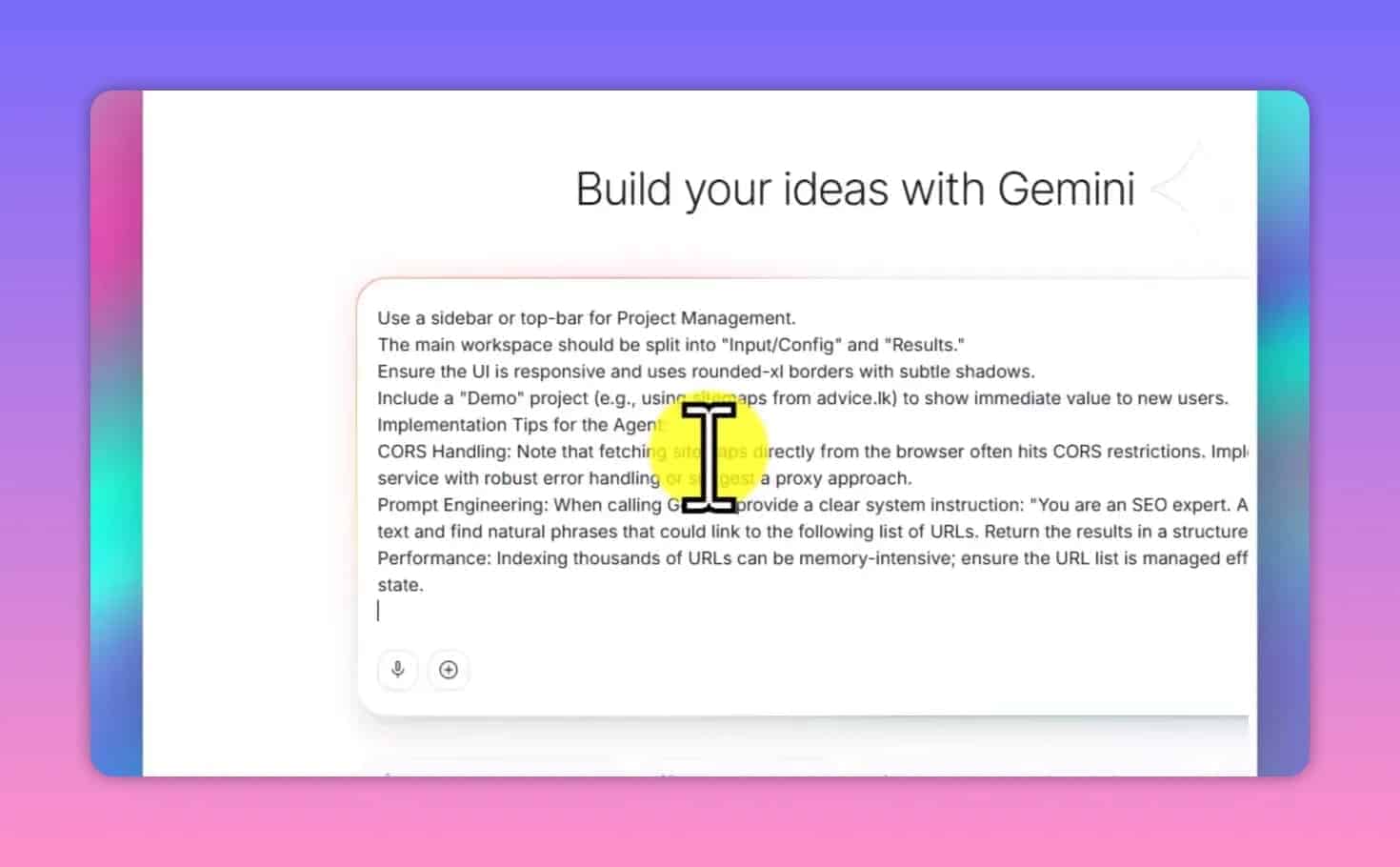
The app builds in real time.You will see code appearing on the right side.This typically takes 1-3 minutes depending on Google’s server load.
Step 7: Choose Optional Settings (Persistence, Authentication, Search Data, Reasoning Mode)
While the app generates, look at the top-right panel in Google AI Studio.You will see some toggle options.
Persistence lets the app remember state between sessions (useful if you want to save your project data).Leave this on if you see it.
Reasoning mode switches between Gemini Flash (faster, cheaper) and Gemini Pro (slower, more capable).Flash is fine for internal linking analysis.Use Pro if you are working with very long articles (5,000+ words) that the Flash model sometimes truncates.
Search connects the AI to live web data.Not required for internal linking since the knowledge base is your sitemap, but it can help with authority link suggestions.
Step 8: Wait for the App to Generate (It Can Take a Few Minutes)
The build process creates a fully functional React application inside a single HTML file.You will see the code generating line by line on the right side.
When it finishes, you will see a rendered app preview.It should show a clean interface with a sidebar on the left for project management and a main area on the right.
If the preview shows an error or a blank screen, scroll down to Step 10 for how to fix common generation issues.
Step 9: Configure Your Project and Add Sitemap URLs
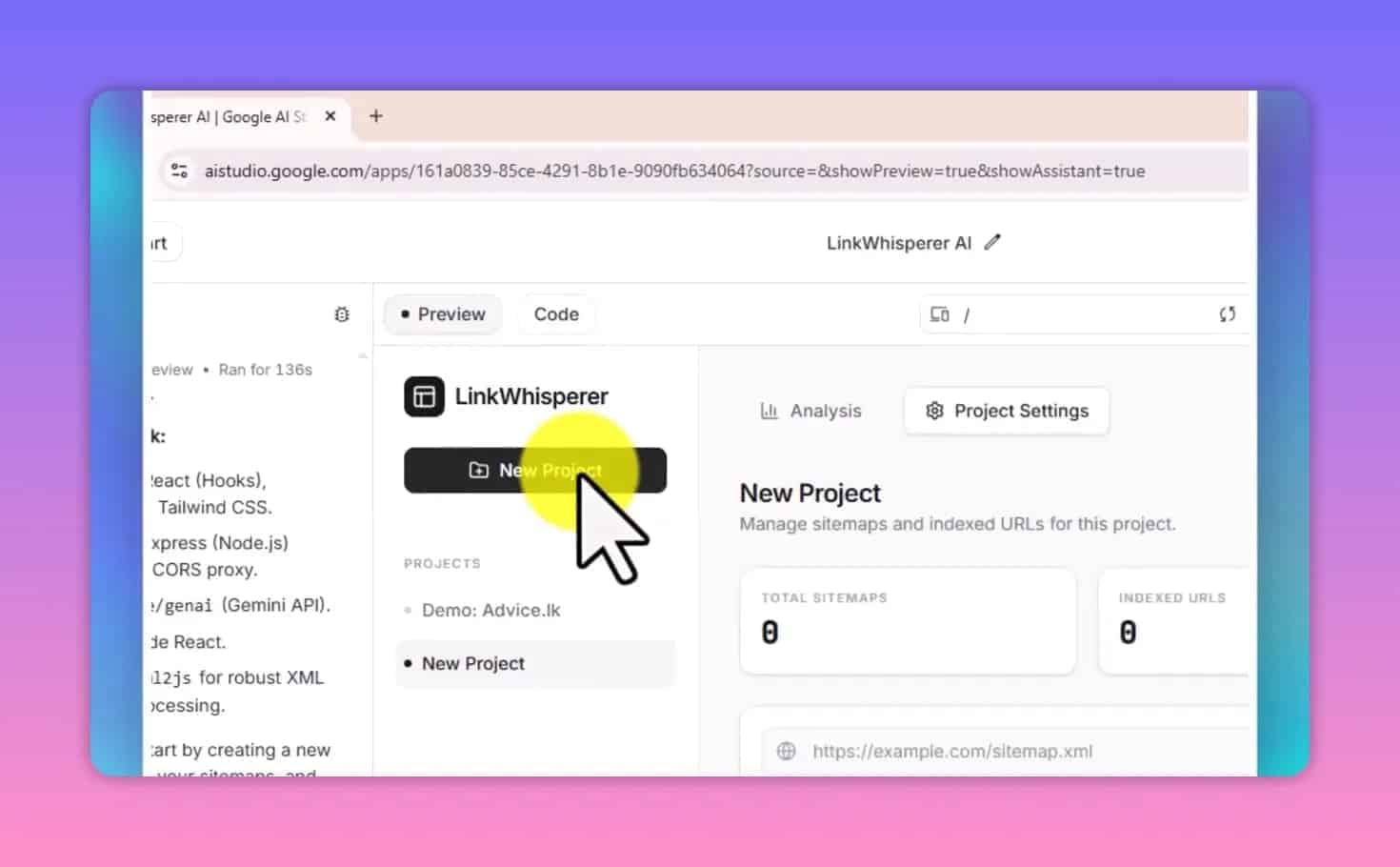
Click New Project in the left sidebar.Name it after your website or client.
In the sitemap field, paste your sitemap URL.For most WordPress sites this is:
https://yourdomain.com/sitemap.xmlIf you use a sitemap index, use:
https://yourdomain.com/sitemap_index.xmlClick Index Sitemap.The tool parses the XML and builds your knowledge base.Depending on how many pages your site has, this can take 10-60 seconds.
When indexing completes, you will see the total number of URLs indexed.For a 200-page site, expect 150-200 URLs (some URLs are excluded by your SEO plugin’s sitemap settings, such as tag archives or author pages).
Step 10: Fix Errors If the App Complains (It’s Usually Manageable)
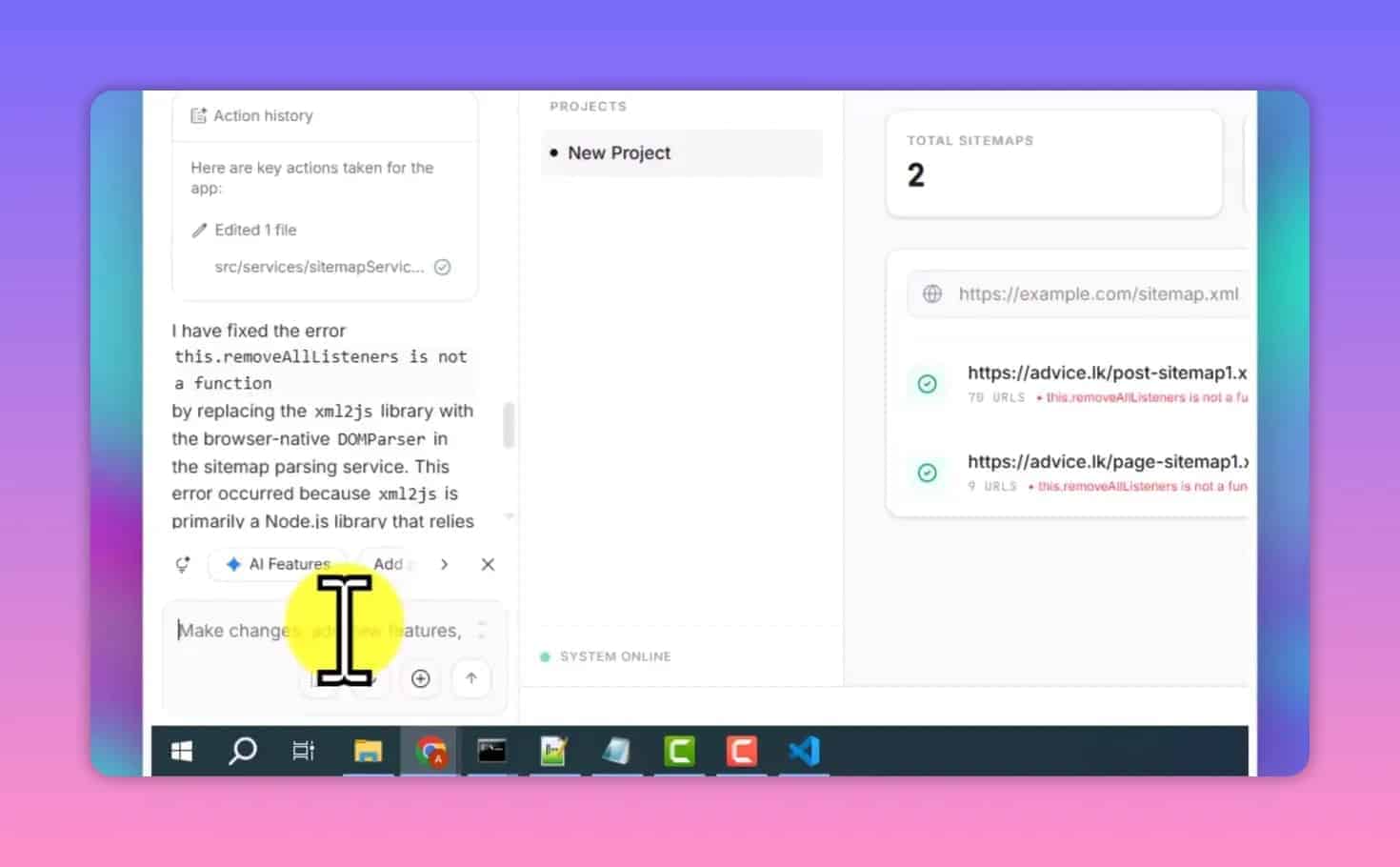
The most common error is a CORS issue during sitemap parsing.Some servers block cross-origin requests from browser-side JavaScript.
If you see a CORS or network error when indexing your sitemap, use this follow-up prompt in Google AI Studio:
On-the-Fly Feature Request Prompt
The sitemap fetching is failing due to CORS issues.Add a fallback: if the direct fetch fails, show a text input where the user can manually paste the sitemap XML content.Parse the pasted XML instead of fetching it remotely.Keep the direct fetch as the first attempt.Paste this into Google AI Studio and run it.The AI updates the app to add a manual paste fallback.
This fix works for 95% of CORS errors.You manually paste your sitemap XML (copy it from your browser) into the input, and the tool parses it locally.
Other common errors:
- Blank preview: Refresh the Google AI Studio page.The app sometimes needs a reload to initialize.
- Missing UI elements: Use the follow-up prompt “The sidebar project list is not showing.Please debug and fix.”
- Analysis not running: This usually means the Gemini API key is not set.See Step 11.
Step 11: Set Up Your Gemini API Key / Free Tier (So Analysis Can Run)
The analysis engine uses the Gemini API.You need an API key to run it.
Go to aistudio.google.com/app/apikey and create a free API key.No credit card is required for the free tier.
The free tier gives you:
- 15 requests per minute with Gemini 1.5 Flash
- 1 million tokens per minute
- 1,500 requests per day
For personal use or a small agency, this is more than enough.
Paste the API key into the Settings panel in your tool.The tool stores it in localStorage (browser memory only, not sent to any server except Google’s own API).
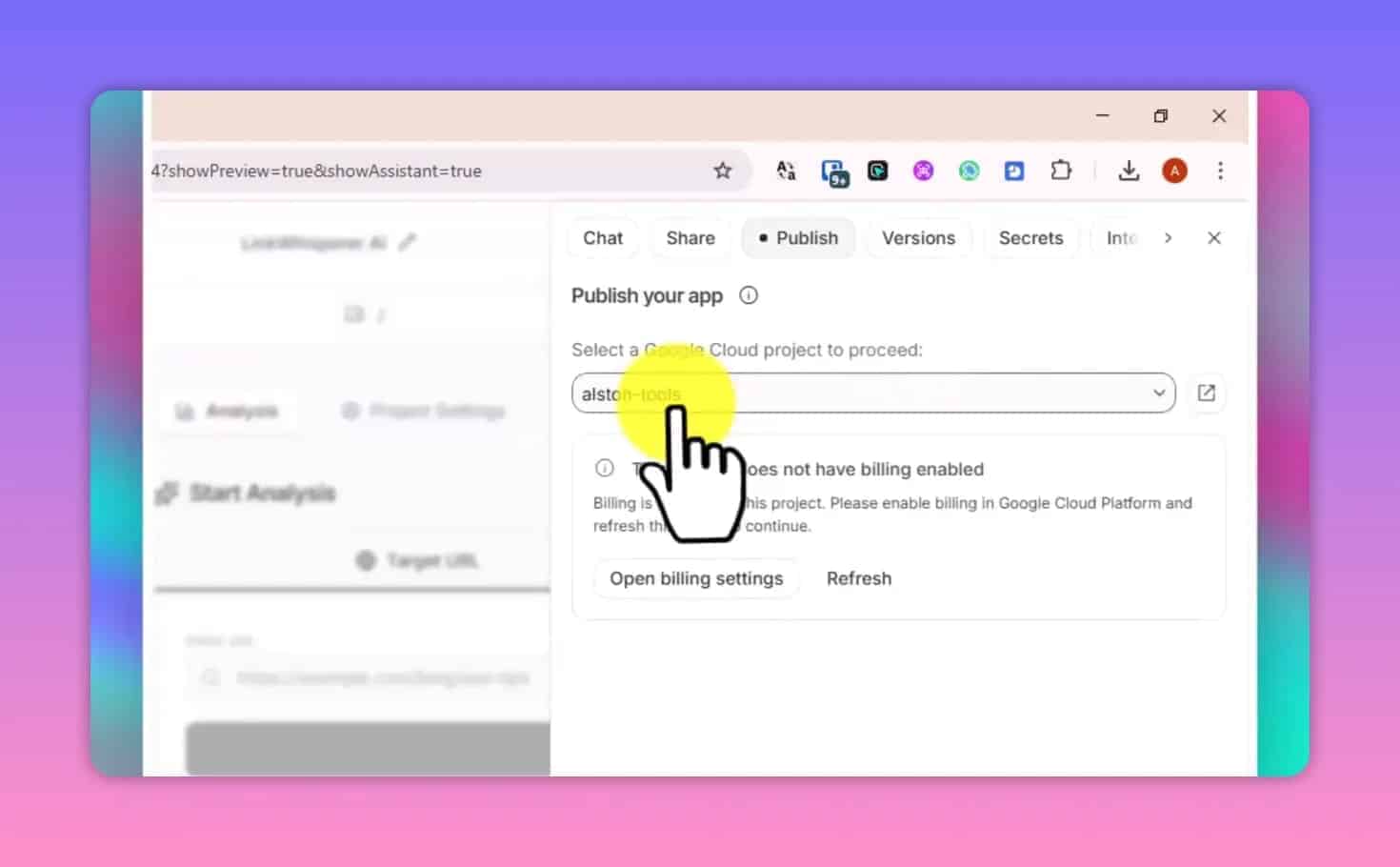
Note on Billing: If you click Publish inside Google AI Studio to host the app on Google’s servers, you may see a “billing not enabled” warning.This is for the hosted version, not your local use.Running the tool from the Google AI Studio preview does not require billing.
Step 12: Run Link Discovery for an Article (The Heart of the AI SEO Internal Linking Tool)
This is where the tool earns its keep.
Go to the Analysis tab.Paste your target page URL into the input field.Click Analyze.
The tool fetches the page HTML (or uses what you pasted), sends it to Gemini along with your indexed sitemap URLs, and returns a list of internal link suggestions.
Each suggestion shows:
- Anchor text: the exact phrase that should become the link
- Target URL: which page on your site to link to
- Context snippet: the sentence in your article where the link belongs
- Relevance score: Gemini’s confidence (1-10) that this link is contextually appropriate
- Reason: a plain-English explanation of why this link makes sense
Review the suggestions.Approve the ones that feel natural and contextually accurate.Reject anything that feels forced or off-topic.
From my own testing on this site: for a 2,500-word article, the tool typically surfaces 8-15 internal link suggestions.I approve roughly 5-7 of them.The others either duplicate existing links in the article or target pages that are only tangentially related.
Step 13: Add Authority External Links (Turn References Into Trust Signals)
What are authority external links and why do they help SEO?
Authority external links are outbound links to established, credible sources: Wikipedia,.gov sites,.edu resources, WHO, World Bank, or other recognized authorities in your niche.Linking to high-quality external sources is an E-E-A-T signal.It tells Google your content is well-researched and factually grounded.
The AI internal linking tool suggests authority links alongside internal links.For a post about SEO timelines, it might suggest linking the phrase “Google algorithm updates” to the official Google Search Central documentation.For a health topic, it might suggest citing the WHO or a PubMed study.
If the default authority link suggestions do not cover your niche well, use this expansion prompt:
Authority Links Expansion Prompt
The authority links section needs improvement.Add support for niche-specific authority sources.Include a settings option where users can add their own trusted external domains (e.g., their industry's top publications, official regulatory sites).When suggesting authority links, prioritize these custom domains alongside the default Wikipedia/WHO/gov sources.Show 5-8 authority link suggestions per analysis instead of 3-5.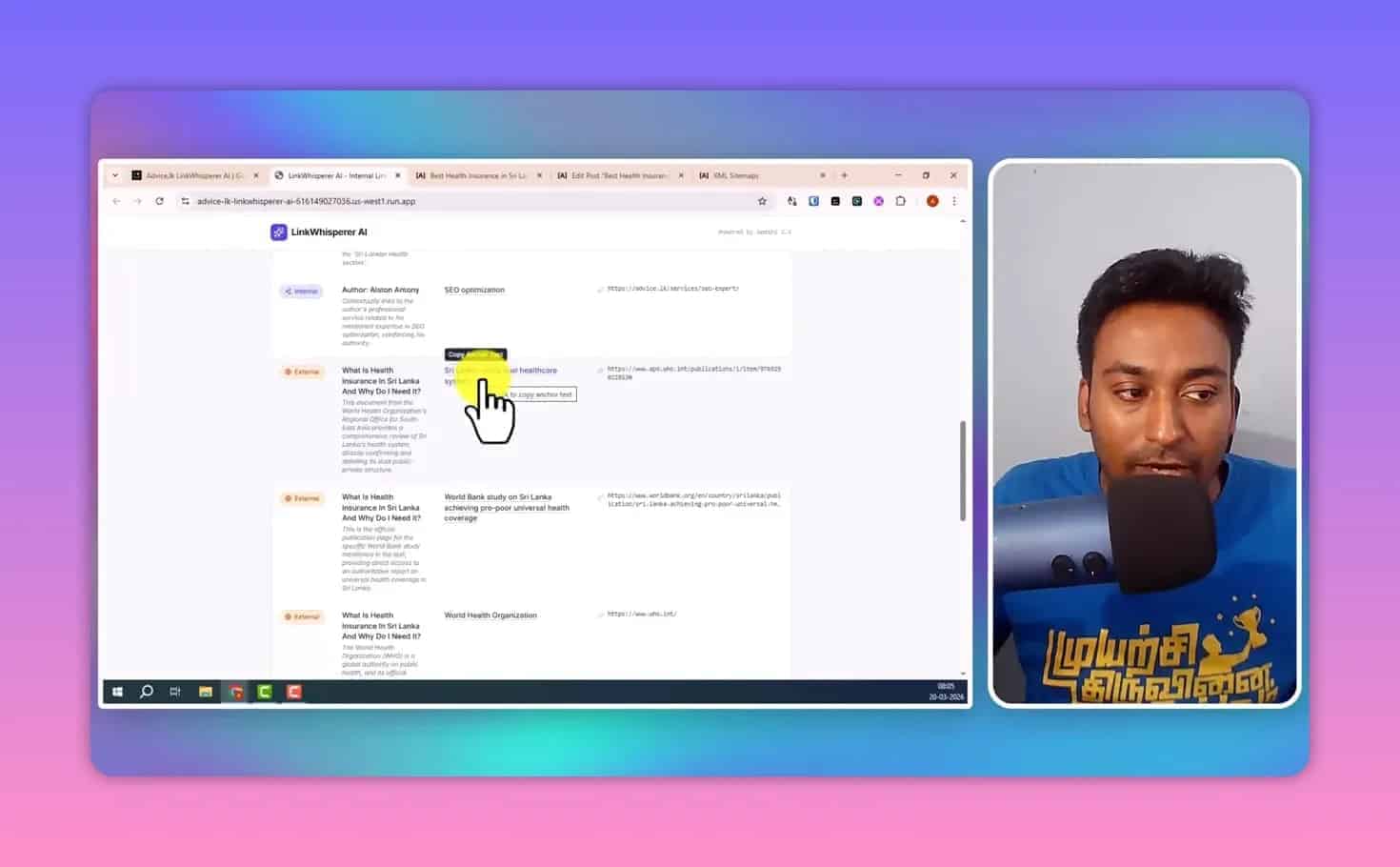
Review these suggestions with the same judgment you apply to internal links.Do not force external links that do not belong.One well-placed citation to an authoritative source is better than three awkward ones.
Step 14: One-Click HTML Injection (Stop Editing Links One by One)
Once you have approved your internal and authority links, the tedious part of internal linking has always been the execution: opening the page editor, finding each sentence, manually inserting the <a href> tag.
The HTML injection feature removes this step.
Go to the HTML Editor tab.Paste your page’s full HTML source code into the input area.The tool modifies the HTML by wrapping the approved anchor text phrases in proper hyperlinks and returns the updated HTML.
Copy the output and paste it back into your CMS HTML editor.Done.
Auto HTML Link Injection Prompt
If you want to add or customize the HTML injection behavior, use this prompt:
Enhance the HTML injection feature.When inserting links, add these safety rules:
1.Do not insert a link if the exact anchor text already has a link wrapping it
2.Only insert each anchor text once per article (no duplicate links to the same target URL)
3.Preserve all existing HTML attributes and formatting
4.Log each injection with before/after context so the user can verify the changes
5.Add an "Undo All Injections" button that restores the original HTML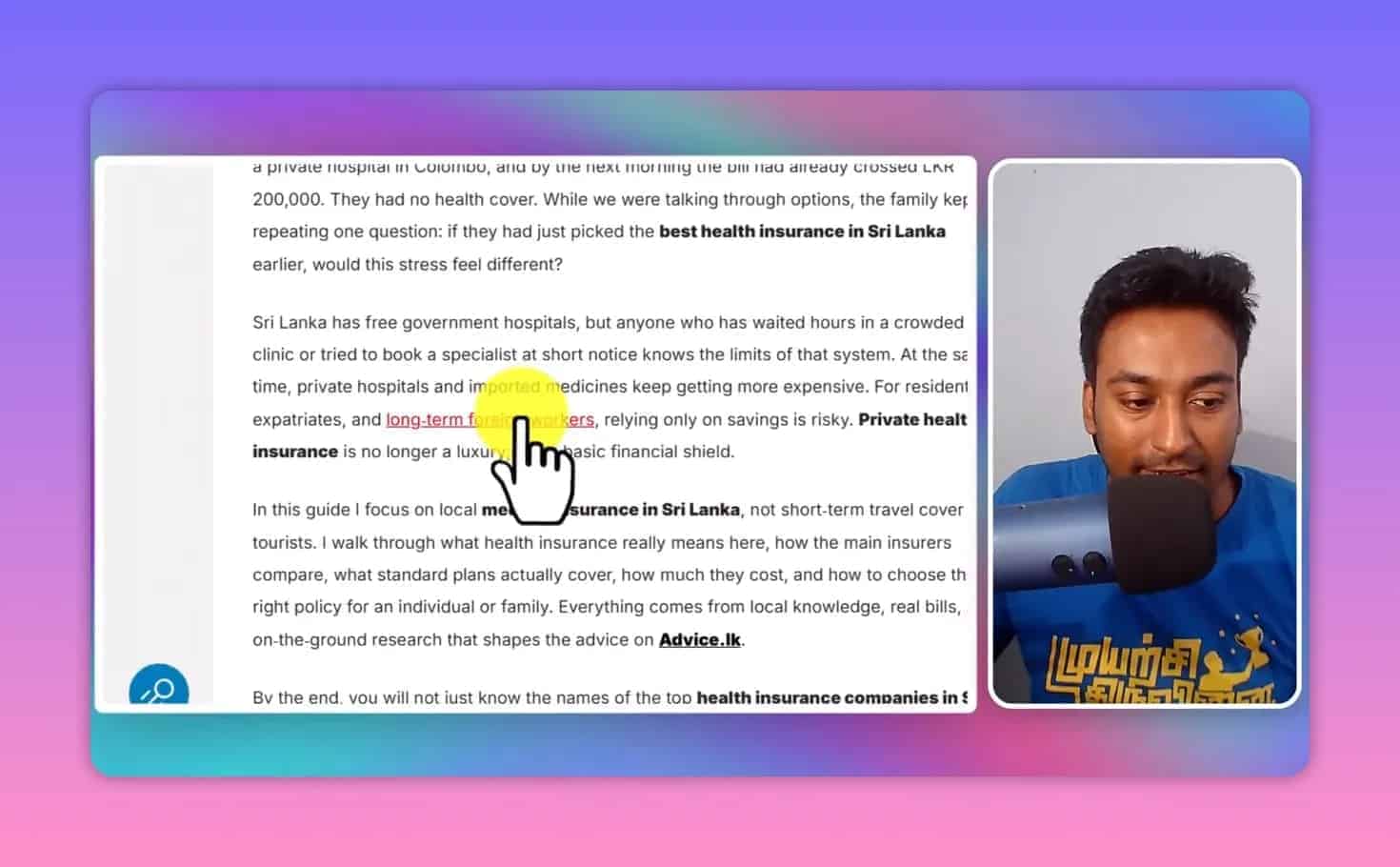
Step 15: Improve Results by Customizing Link Counts and Selection
The default analysis returns all suggestions Gemini finds. For shorter articles, this can be 4-6 suggestions. For long pillar content, it can return 20+.
To control the volume, add a “max links” setting in your prompt, or manually adjust the relevance score threshold. Only approve suggestions with a relevance score of 7 or higher for a tighter, higher-quality link set.
For pillar content (3,000+ words), I aim for 6-10 internal links. For standard posts (1,500-2,500 words), 4-6 internal links is the right range. Anything more than that starts to feel heavy for the reader.
Step 16: Use It for Unpublished Content (Paste HTML When the Page Is Not Live Yet)
The analysis engine does not require a live URL. If you are writing a new article that has not been published, paste the raw HTML or plain text content directly into the analysis input field.
The tool analyzes whatever you paste, not just live URLs. This means you can run internal link discovery before you publish, which is the smarter workflow. You identify the links during the writing phase and include them before hitting publish, rather than going back after the fact.
Step 17: Publish or Self-Host (Depending on How You Want to Use It)
Google AI Studio Hosted (Easiest)
Inside Google AI Studio, click Publish. Google hosts the app for you. Free tier users get a public URL that is accessible without a login. The billing warning you saw earlier only applies if you exceed free tier API limits, which is unlikely for personal use.
Self-hosted (Most Flexible)
Since the app generates as a single HTML file, you can save it locally and open it in any browser. No server required. Your API key is stored in your browser’s localStorage. This is the option I prefer for sensitive client work since no data touches Google’s hosting.
Deployed on a server
If you want the tool accessible to a team without everyone needing to set up their own Google AI Studio account, deploy the HTML file on any static hosting provider (Cloudflare Pages, Netlify, GitHub Pages). Add a shared API key in the settings.
Step 18: Internal Linking Best Practices (So AI Suggestions Stay “SEO-Correct”)
Even with AI surfacing the opportunities, your judgment determines whether the tool helps or hurts your SEO. Here are the rules I follow when reviewing AI suggestions.
Link to genuinely helpful pages. If a reader clicks the anchor text and lands on a page that answers the implied question, the link earns its place. If the target page is only loosely related, skip it.
Keep anchor text natural. The AI suggests anchor text based on content analysis, but sometimes it picks awkward phrasing. Read the anchor text out loud. If it sounds like someone tried to stuff a keyword, rewrite it to read naturally.
Avoid overlinking. More than one link every 200 words starts to feel heavy. I aim for one internal link per 300-400 words in standard posts.
Do not link to the same target URL twice in the same article. The second occurrence adds no SEO value and clutters the reading experience.
Prioritize links to your pillar pages and highest-value conversion pages. Use the tool to keep traffic flowing toward the pages that matter most, such as your best SEO tools list, your deals page, or your newsletter signup.
For more on building internal linking systems at scale, read my guide on building a free AI internal linking tool with Google AI Studio and how it connects to my broader lean AI SEO strategy for business owners.
Step 19: A Quick Example of How the Tool Improves a Real Workflow
Let me walk through how I use this on a new article.
I write an 2,400-word post about keyword clustering for small business blogs. Before publishing, I paste the full draft HTML into the analysis tool. My knowledge base has 240 indexed pages from this site.
The tool returns 14 suggestions. I review them:
- Approved: Link “keyword clustering” to my Semrush Keyword Clusters tutorial. Relevance 9/10. Makes perfect sense.
- Approved: Link “search intent” to my guide on how search engines work. Relevance 8/10. Good context.
- Approved: Link “free keyword research” to my free keyword research template page. Relevance 9/10. Direct value to the reader.
- Rejected: Link “content strategy” to my Lean AI SEO article. Relevance 5/10. The context snippet does not support the link naturally.
- Rejected: Duplicate link to Semrush Keyword Magic Tool (I already linked to it earlier in the draft).
I end up with 6 approved internal links and 2 authority external links. I click inject. The HTML updates. I copy, paste into WordPress, preview, and publish.
What used to take 30-40 minutes of manual review now takes under 5 minutes. That is the real value here.
Step 20: Final Thoughts (Build Tools That Make You Better, Not Lazier)
This tool does not replace your editorial judgment. It replaces the mechanical search for opportunities. You still decide which links belong. You still write the content. The AI saves you from scanning 200 posts to find 6 contextually relevant pages.
I built this because I was spending too much time on the repetitive part of internal linking and not enough time on the creative part. If you manage a large content archive or handle internal linking across multiple client sites, the time savings stack up fast.
The Google AI Studio approach keeps costs at zero. The Gemini free tier is generous enough for regular personal and light agency use. If you outgrow it, the paid tier starts at around $0.075 per 1 million tokens with Gemini 1.5 Flash, which works out to fractions of a cent per article analysis.
If you want to explore other AI tools I have built or tested for SEO, check out my AI internal linking automation comparison or my review of ClickRank AI for automated on-page SEO. If keyword research automation interests you more than linking, my ChatGPT prompts for SEO keyword research guide uses a similar no-code AI approach.
Tools do not grow traffic by themselves. They help you do the right work faster.
FAQ
What is an AI internal linking tool?
An AI internal linking tool uses artificial intelligence to analyze a page’s content and automatically suggest relevant internal links from other pages on your site. Instead of manually reviewing your entire content archive, the AI cross-references your target article against a sitemap-based knowledge base and identifies which pages should be linked, where the links should appear, and what anchor text to use.
Can I build an AI internal linking tool for free?
Yes. Using Google AI Studio and the Gemini free tier, you can build and run a fully functional AI internal linking tool with no subscription fee. The free tier supports 15 requests per minute and 1,500 requests per day, which covers personal use and light agency workflows without any cost.
Does this work for any CMS, not just WordPress?
Yes. The tool analyzes any URL or HTML you paste into it, regardless of what CMS your site uses. The HTML injection output is plain HTML, so it works with WordPress, Webflow, Wix, Squarespace, custom-built sites, and static site generators like Astro.
How many internal links should I add per article?
A good benchmark is 4-6 internal links for a standard 1,500-2,500 word post, and 6-10 for long-form pillar content (3,000+ words). The tool may surface 10-20 suggestions. You should not approve all of them. Focus on links where the anchor text reads naturally and the target page directly serves the reader’s intent.
Is this the same as Link Whisper?
No. Link Whisper is a WordPress plugin that costs $77+ per year. This is a free tool you build yourself using Google AI Studio. It handles the same core function (finding internal link opportunities) but works outside WordPress, supports multiple projects without a per-site fee, and adds authority external link suggestions that Link Whisper does not include.
How accurate are the AI link suggestions?
Based on my own use across this site, the tool’s top suggestions (relevance score 7+) are accurate and contextually natural roughly 80% of the time. Suggestions below a 6 relevance score are often technically valid but feel forced in context. I recommend reviewing every suggestion rather than approving them all automatically.
Disclosure: This article covers a free tool I built using publicly available AI infrastructure. No affiliate links. The Google AI Studio and Gemini API links point directly to Google’s official platform.